# Fulfillment orders

A **fulfillment order** (FO) is a way to track orders that [items](https://guide.hardfin.com/set-up-the-basics/items) need to be fulfilled and sent to customers or between locations. Fulfillment orders help you manage what needs to be shipped, where it's going, and when it's promised to arrive.

{% hint style="success" %}
Fulfillment orders provide visibility into what needs to be shipped, in order to help ensure customer commitments are met. They serve as the **planning layer** before actual shipments are created and inventory is moved. It is essentially a **set of instructions**.

As such, an FO is a **business object** that tracks what needs to be shipped, where it's going, and when it's promised to arrive. The FO itself **does not track any items or real world movement**. It is a tool to help organize your logistics and ensure that each team knows what they need to do and when they need to do it.
{% endhint %}

> **Example:** The sales team closes a deal for 10 units of product LDR-4.1 with a customer in Milwaukee. A [project](https://github.com/hardfinhq/user-guide/blob/gitbook/run-your-business/projects.md) is created to track the sale. The supply chain team checks availability and creates a **fulfillment order** to ship 10 units of LDR-4.1 from your Chicago warehouse. The logistics team in the warehouse creates an **outbound shipment** to fulfill the order and ship the 10 units of LDR-4.1 from your Chicago warehouse to the Milwaukee customer location. When the shipment is shipped, the assets appear in transit. When the shipment is delivered, the assets appear in the customer's location.

Fulfillment orders are part of the **logistics workflow** for managing outbound goods:

{% @mermaid/diagram content="---
title: Fulfillment workflow
config:
look: handDrawn
theme: neutral
--------------

graph LR
Project\["Project"] --Issue an FO--> FulfillmentOrder\["Fulfillment order"]
FulfillmentOrder\["Fulfillment order"] --Fulfill--> OutboundShipment\["Outbound shipment"] --Ship--> AssetMovement\["Asset movement"]
style FulfillmentOrder fill:#F5F9FF
" %}

{% hint style="info" %}
**Understand fulfillment order relationships**

A **fulfillment order** includes a set of **parts** or **products** (serialized assets) that need to be sent from an origin to a destination.

Each fulfillment order can be linked to a **project** to track which customer engagement the order supports.

Fulfillment orders track optional **promise dates** for when items should ship and when they should arrive at the destination.
{% endhint %}

{% hint style="warning" %}
Note: fulfillment orders are for tracking what needs to be fulfilled and shipped. To actually ship the items and update inventory, you'll create an [outbound shipment](https://guide.hardfin.com/fulfill-and-deploy/outbound-shipments) based on the fulfillment order.
{% endhint %}

## List all fulfillment orders

To see a list of all fulfillment orders, navigate to the [fulfillment page](https://assets.hardfin.com/fulfillment). Fulfillment orders are listed in a table with each fulfillment order, along with the following information:

* **Order number.** Fulfillment order reference number automatically assigned by Hardfin (e.g., FO-2024-0001), and optionally associated with a [project](https://github.com/hardfinhq/user-guide/blob/gitbook/run-your-business/projects.md)
* **From/to location.** The origin location where items should be shipped from and the destination location where items should be delivered
* **Items.** The parts and products included in this FO with their quantities
* **Promise dates.** Optional promise ship date (when items should be shipped) and promise delivery date (when items should arrive)
* **Status.** The current status of the fulfillment order
* **Notes.** Any additional information about the fulfillment order

<figure><img src="https://2864885930-files.gitbook.io/~/files/v0/b/gitbook-x-prod.appspot.com/o/spaces%2FMxeM0MnelRVRY9do1uXU%2Fuploads%2F1agzMaMwBHHwfJGlyuJ3%2Fimage.png?alt=media&#x26;token=a37d293c-b4bb-4035-b1c6-bcea0c7415dc" alt=""><figcaption><p>Fulfillment orders (FO) list view</p></figcaption></figure>

Use the tabs to filter fulfillment orders by status. Use the **search** to search all fulfillment orders.

## Fulfillment order status

Fulfillment orders progress through different statuses as they are processed:

* **Draft** - Order is being prepared but not yet ready to fulfill
* **Awaiting 3PL** - Order has been sent to a third-party logistics provider and is awaiting processing\*
* **Open** - Order is active and ready to be fulfilled but no items have shipped yet
* **Shipped** - Items are in transit to the destination location
* **Delivered** - Items have been delivered to the destination location
* **Cancelled** - The FO has been cancelled and is no longer valid

The status automatically updates as outbound shipments are created and processed against the fulfillment order.

{% hint style="info" %}
*Note:* "Awaiting 3PL" status only appears if your organization has been enabled for third-party fulfillment.
{% endhint %}

### Status levels

Fulfillment orders also display **status levels** that provide more detailed visibility into the shipment and delivery progress. These levels combine with the base status to show exactly how much of the order has been processed:

<table><thead><tr><th width="164.58984375">Status level</th><th>Meaning</th></tr></thead><tbody><tr><td>Partial</td><td>Some (but not all) items have been recorded</td></tr><tr><td>Full</td><td>All items have been recorded exactly</td></tr><tr><td>Overage</td><td>All items have been recorded, and some in excess</td></tr></tbody></table>

For example, a fulfillment order might show "Shipped — Partial" (some items have shipped but not all), "Delivered — Full" (all items have been delivered), or "Delivered — Overage" (more items were delivered than originally requested).

Status levels help you quickly understand both the overall fulfillment order status and the current state of associated shipments without needing to drill into the shipment details.

### Line item statuses

Each line item on a fulfillment order tracks its own quantities and status:

* **Open quantity** - Items expected but not yet in any shipment
* **Shipped quantity** - Items currently in transit
* **Delivered quantity** - Items delivered to the destination

Each line item displays a status combining a phase (draft, open, shipped, delivered) with a level (partial, full, overage) based on these quantities. This provides visibility into the progress of each individual item within the fulfillment order.

## Add a fulfillment order

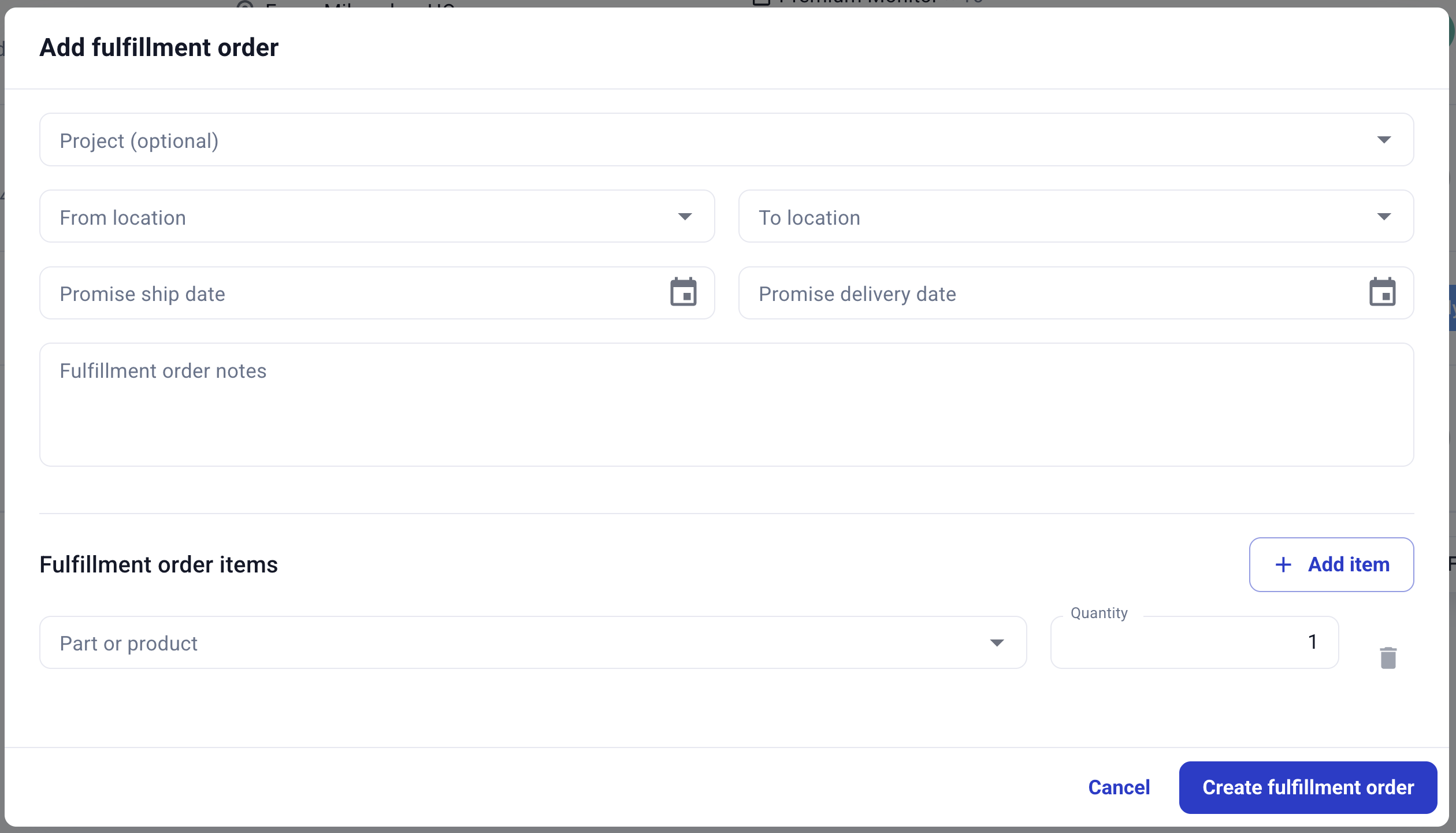
To create a new fulfillment order, click the "Add fulfillment order" button and a window will appear. Enter the appropriate details for the order:

* **Order details** - "From" location, "To" location, and optional project association
* **Promise dates** - Optional promise ship date and promise delivery date for customer commitments
* **Items** - Parts or products to be fulfilled
* **Files** - Any files associated with the fulfillment order, such as packing lists, shipping labels, or customer documentation
* **Notes** - Any additional information about the FO

If you associate an FO with a project, it will automatically populate with all the appropriate data to fulfill that project.

<figure><img src="https://2864885930-files.gitbook.io/~/files/v0/b/gitbook-x-prod.appspot.com/o/spaces%2FMxeM0MnelRVRY9do1uXU%2Fuploads%2Fgit-blob-5b41e51962b54e3ffcefda23f7a4314d6e50a323%2Fimage.png?alt=media" alt="" width="563"><figcaption><p>Add fulfillment order window</p></figcaption></figure>

Once all required information is entered, click "Create fulfillment order" to confirm. The FO will be created in draft status.

Not all fields are required to create a fulfillment order. At minimum, you need to specify the "From" and "To" locations and at least one item to fulfill.

## View a fulfillment order

To view a fulfillment order, click the FO in the fulfillment order list. It will open the full FO details page showing all order information including:

* **Order details** - Reference number, from/to locations, and associated project
* **Items** - Parts and products to be fulfilled with quantities
* **Promise dates** - Ship and delivery dates for customer commitments
* **Files** - Any files attached to the fulfillment order
* **Notes** - Additional information about the order

<figure><img src="https://2864885930-files.gitbook.io/~/files/v0/b/gitbook-x-prod.appspot.com/o/spaces%2FMxeM0MnelRVRY9do1uXU%2Fuploads%2FSKM4VZPFDY0Zj5yZyo8T%2Fimage.png?alt=media&#x26;token=da56ed3e-e909-4ead-9116-d0acb146182d" alt=""><figcaption><p>Fulfillment order (FO) details</p></figcaption></figure>

From the FO details, you can take action on the fulfillment order.

## Taking action on a fulfillment order

Several actions can be taken on a fulfillment order:

* **Edit.** A draft FO can be edited to change the order
* **Clone.** Creates a new draft fulfillment order with the same details (locations, items, quantities) as the original, allowing you to quickly create similar orders without entering all details from scratch
* **Send to 3PL.** If third-party fulfillment is enabled for your organization *and* the FO is coming "From" a 3PL location, you can send the order to the 3PL (see [Third Party Fulfillment below](#third-party-fulfillment-3pl))
* **Fulfill.** Creates a new outbound shipment against the fulfillment order
* **Cancel.** A fulfillment order can be canceled if it is in Draft or Partially Fulfilled status (unless it has already been sent to a 3PL).

These actions appear at the top right of the fulfillment order details page.

### Creating shipments from fulfillment orders

Once a fulfillment order is ready to ship, you can click "Fulfill" button to create an [outbound shipment](https://guide.hardfin.com/fulfill-and-deploy/outbound-shipments) to actually move the items and update inventory. The shipment references the fulfillment order number and tracks:

* The actual quantity shipped (which may differ from what was ordered)
* The actual ship date
* The carrier and tracking information
* The actual delivery date

As shipments are created and completed for a fulfillment order, the fulfillment order status automatically updates to reflect the current shipment and delivery progress.

As shipments are shipped against a fulfillment order, the FO status automatically updates. The details of each shipment appear underneath its corresponding line item (on the **Line items** tab) and listed by shipment (on the **Shipments** tab).

<figure><img src="https://2864885930-files.gitbook.io/~/files/v0/b/gitbook-x-prod.appspot.com/o/spaces%2FMxeM0MnelRVRY9do1uXU%2Fuploads%2FuuRWwNPxb8LOUHer3Ju4%2Fimage.png?alt=media&#x26;token=6abcae45-5af7-4322-845a-cf13bf579642" alt="" width="563"><figcaption><p>Fulfillment order (FO) line items with shipments in progress</p></figcaption></figure>

## Third-party fulfillment (3PL)

Some fulfillment orders may be handled by third-party logistics providers (3PLs) rather than your own warehouse. Hardfin's 3PL integrations allow you to send fulfillment orders to your 3PL provider and automatically update the fulfillment order status to "Awaiting 3PL" when the order is sent.

If the "From" location has been designated as a 3PL location, the fulfillment order will automatically provide the option to "Send to 3PL" instead of "Fulfill" directly. Once the order is sent to the 3PL, the fulfillment order will automatically be marked as "Awaiting 3PL" status.

<figure><img src="https://2864885930-files.gitbook.io/~/files/v0/b/gitbook-x-prod.appspot.com/o/spaces%2FMxeM0MnelRVRY9do1uXU%2Fuploads%2FoWBaetUEEFO2xip48ZK4%2Fimage.png?alt=media&#x26;token=7ce14ae3-e061-4bc3-9d02-7cf24f83ddc4" alt=""><figcaption><p>"Send to 3PL" option on FO</p></figcaption></figure>

Third-party fulfillment orders still track the same information (what needs to be sent, where it's going, promise dates) but indicate that your organization is not directly handling the shipping logistics. When Hardfin receives confirmation from the 3PL that the order has been shipped, the fulfillment order status will automatically update to reflect the shipment and delivery progress.

{% hint style="info" %}
Third-party fulfillment is only available if your organization has third-party fulfillment enabled. Contact your Hardfin representative to enable third-party fulfillment.
{% endhint %}