> For the complete documentation index, see [llms.txt](https://guide.hardfin.com/llms.txt). Markdown versions of documentation pages are available by appending `.md` to page URLs; this page is available as [Markdown](https://guide.hardfin.com/manage-your-account/organization/custom-notifications.md).
# Custom notifications
**Custom notifications** allow you to include external stakeholders in project communications without granting them full system access. This feature enables collaboration with customers, partners, or other external parties who need to stay informed about project progress.
{% hint style="info" %}
Custom notifications are also useful for sending notifications to email lists, such as `accounting@example.com` or `accounts-receivable@example.com`.
{% endhint %}
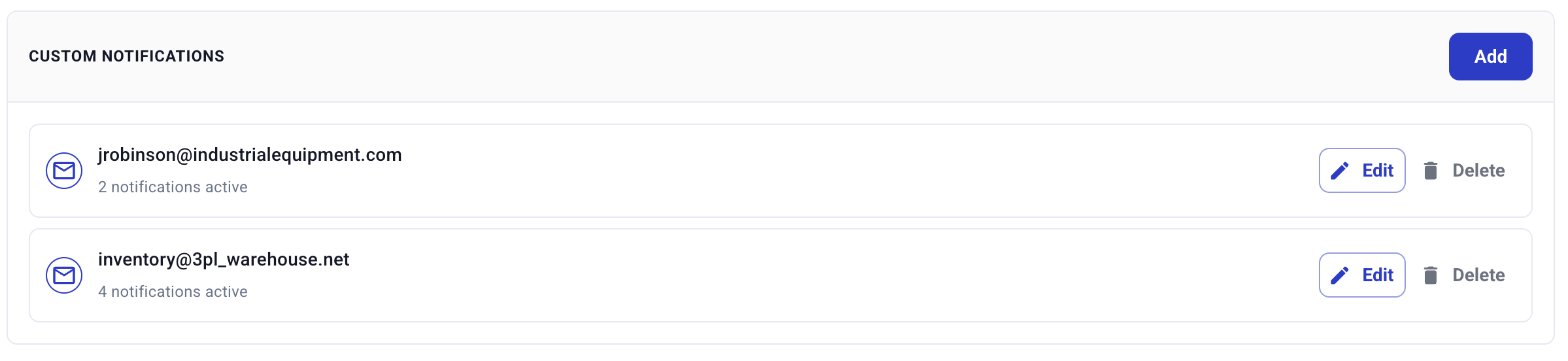
Custom notification list
### Managing custom notifications
To set up a new custom notification:
1. Navigate to the [Organization settings](https://assets.hardfin.com/organization) page
2. In the **Custom notifications** section, choose **Add**
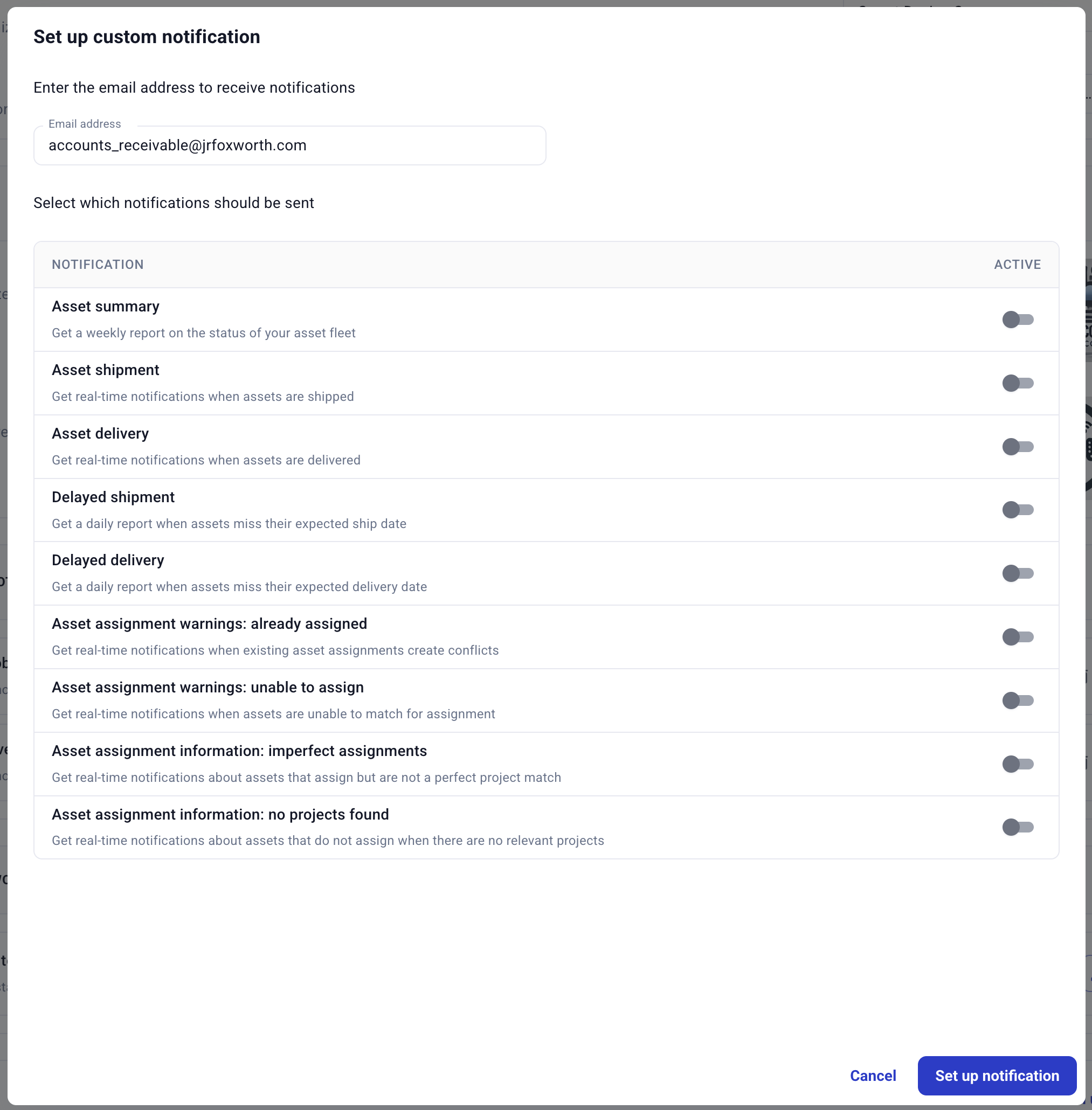
3. Enter the email address to receive the notification
4. Choose the appropriate notification preferences
5. Save the configuration to begin sending notifications
Configuring a new custom notification
A custom notification can be configured for any of Hardfin's [notification options](/monitor-the-details/notifications.md).
Once set up, an existing custom notification can be modified by clicking "edit" or "delete" next to the email address in the custom notification list.