> For the complete documentation index, see [llms.txt](https://guide.hardfin.com/llms.txt). Markdown versions of documentation pages are available by appending `.md` to page URLs; this page is available as [Markdown](https://guide.hardfin.com/monitor-the-details/files-and-links.md).
# Files and links
Hardfin allows you to attach both **files** and **links** to your project and asset records, making it easy to keep all relevant documentation and references centralized in one place.
## Overview
Files and links provide a flexible way to attach supplementary information to your assets and projects:
* **Files** - Upload documents, images, spreadsheets, and other files directly to Hardfin (all file formats accepted)
* **Links** - Attach URLs to external resources, websites, or online documentation
Both files and links can be attached to:
* **Projects** - Such as contract details, price lists, lease terms, master service agreements (MSA), and other commercial documents
* **Assets** - Such as procurement history, bills of materials, sales records, serial number documentation, and technical specifications
## Where to find files and links
You can access files and links from multiple locations in Hardfin:
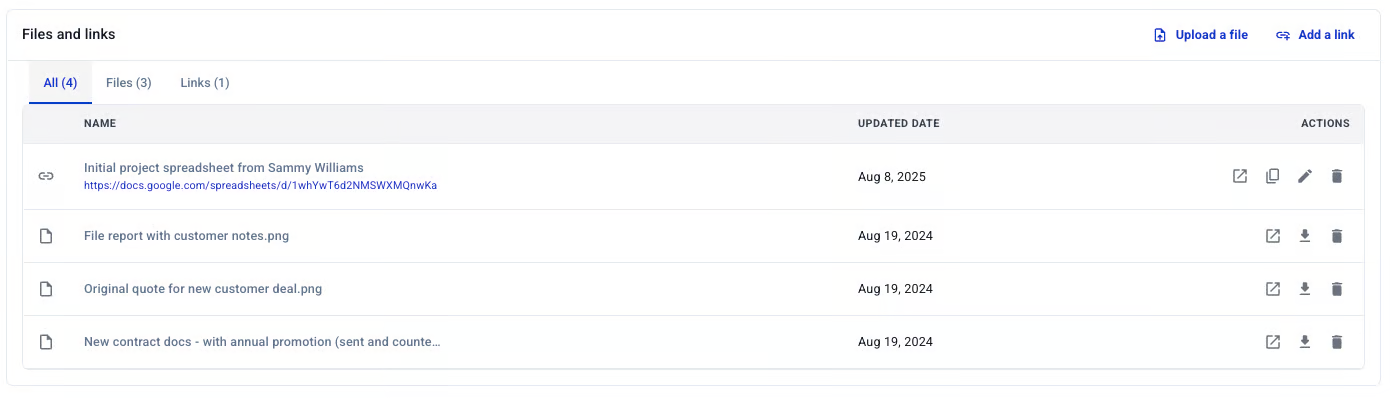
* **Project details** - Navigate to a project and select the "Files and links" tab to view all project files and links
* **Asset details** - Navigate to an asset and select the "Files and links" tab to view all asset files and links
Files and links table on a project
Files and links help you maintain comprehensive records for all your assets and projects, ensuring that important documentation is always accessible when you need it.
## Uploading files
Files can be uploaded directly through the "Files and links" tab on relevant pages.
To upload a file:
1. Navigate to the relevant detail page
2. Click on the "Files and links" tab
3. Click the "Upload a file" button
4. Select your file from your computer
5. The file will be uploaded and appear in the files and links table
**File requirements:**
* **All file formats are accepted** - Hardfin does not restrict file types
* **Secure storage** - All uploaded files are stored securely in your Hardfin workspace
* **Access control** - File permissions follow your project or asset access settings
* **Size limit** - 20MB per file
## Adding links
In addition to uploading files, you can attach links to external resources directly to relevant pages.
To add a link:
1. Navigate to the relevant detail page
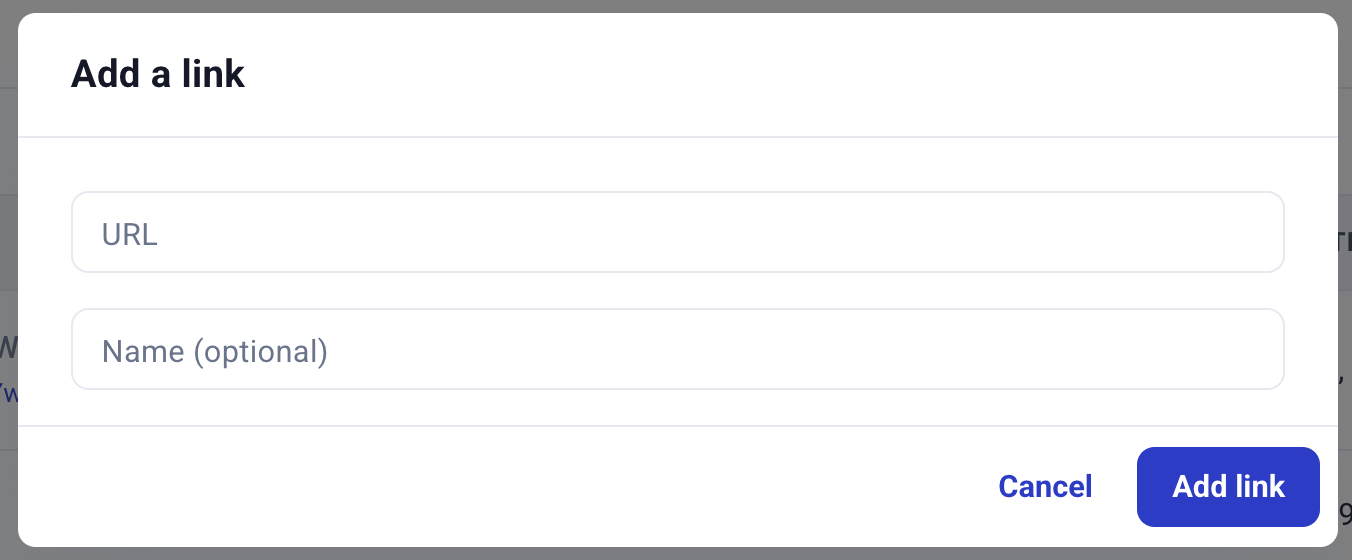
2. Click the "Add a link" button in the quick actions menu
3. Enter the URL and an optional description
4. The link will be added to the files and links list
Add link window
Links provide a convenient way to reference external documentation, manufacturer websites, warranty portals, or other online resources without needing to download and upload files.
## Managing files and links
Once uploaded or added, you can manage your files and links through the files and links table:
* **View** - Click on a file name to view or open the file
* **Download** - Download files directly to your computer
* **Delete** - Remove files or links that are no longer needed
{% hint style="info" %}
All changes to files and links are tracked in the [audit log](/monitor-the-details/audit-log.md), including when files or links are added or deleted. This ensures complete traceability for compliance and accountability purposes.
{% endhint %}
## Automatic file synchronization from HubSpot
If you have a [HubSpot CRM integration](/manage-your-account/integrations.md) enabled, Hardfin will automatically sync files from each HubSpot Deal directly to the new Hardfin Project when the project is created.
Audit record for HubSpot file sync
**Automatic file synchronization**
* **Deal attachments** - Files associated with HubSpot deals are synced when the deal triggers project creation
* **Activity files** - Files attached to HubSpot activity are automatically downloaded and linked to the corresponding project
* **Centralized storage** - All HubSpot files are stored securely within your Hardfin project workspace
* **Access control** - File permissions follow your Hardfin project access settings
* **Real-time updates** - New files added to HubSpot are automatically pulled into Hardfin during regular sync cycles
HubSpot applies a [complex set of file size limits](https://knowledge.hubspot.com/files/supported-file-types), and Hardfin will automatically handle these limits when syncing files from HubSpot.
{% hint style="success" %}
Automatic file synchronization ensures that all project-related documentation from your sales process is immediately available to your operations and success teams without manual file transfers.
{% endhint %}