> For the complete documentation index, see [llms.txt](https://guide.hardfin.com/llms.txt). Markdown versions of documentation pages are available by appending `.md` to page URLs; this page is available as [Markdown](https://guide.hardfin.com/set-up-the-basics/items/manage-item-fields.md).
# Manage item fields
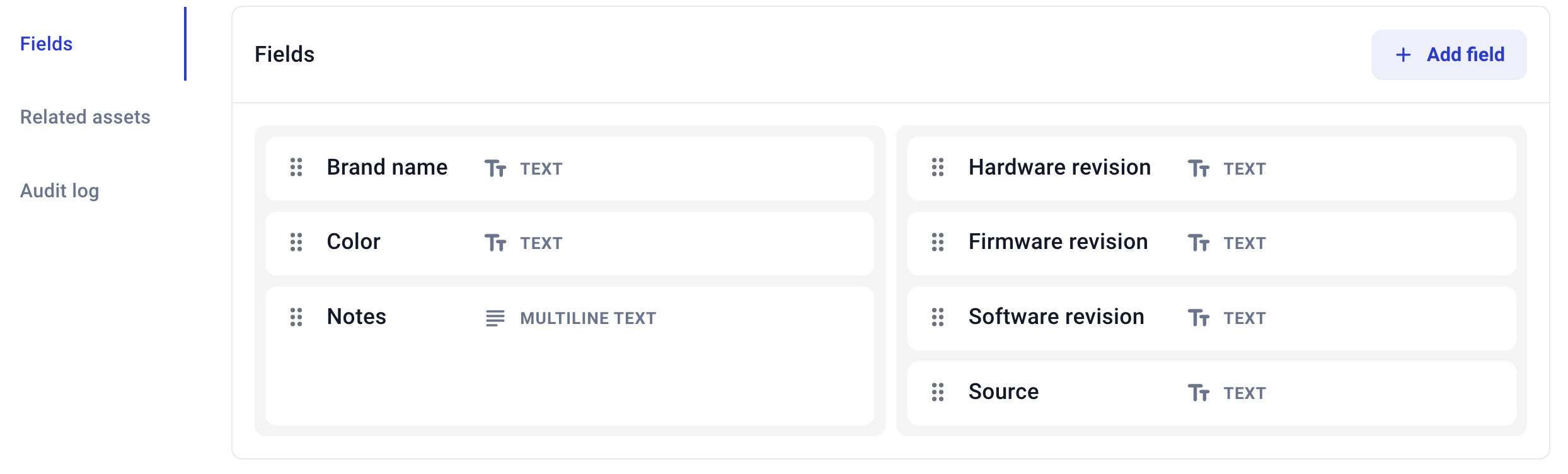
Tracked device **fields** define data that may be relevant for all the assets of that item type. These fields appear on each asset of this item type, so that the fields can be filled in as asset metadata.
{% hint style="info" %}
Item fields are only available for **tracked device** products.
{% endhint %}
Example item fields
For example: a product **Lawnmower** might be associated with fields **blade size** and **horsepower**. If assets with serial numbers MOW-101, MOW-102, and MOW-103 are associated with the Lawnmower product, the company can configure each serial number with appropriate metadata (such as 21" blades and 5 horsepower).
Some common use cases for item fields to define asset metadata:
* Revision
* Hardware version
* Firmware version
* Software version
* Brand/OEM
* Model number
* Color
* Source
## **Adding item fields**
Click the "Add field" button to add a new field for a tracked device. This new field will apply to all assets of this type. Enter the **name** of the field and choose the **type** of data to use for the field. Then click the "Add" button.
Add item field
## **Item field types**
There are eight different types of item field data that you can configure, depending on what type of metadata you're looking to store for your assets:
* Single-line text
* Multi-line text
* Integer
* Decimal
* Date
* Time
* Date + time
* Check box
Select the appropriate field type based on the data that you want to store. For example:
* A manufacturer name might be a single line of text
* A supplier lot number might be an integer number
* An installation date might be a date (if being logged manually), or a date+time combo (if coming from an internal database)
## **Edit item fields**
Hover over any item field and click the pencil icon :pencil2: to edit that field's name. The field's type cannot be changed.
Edit an item field
## **Rearrange field order**
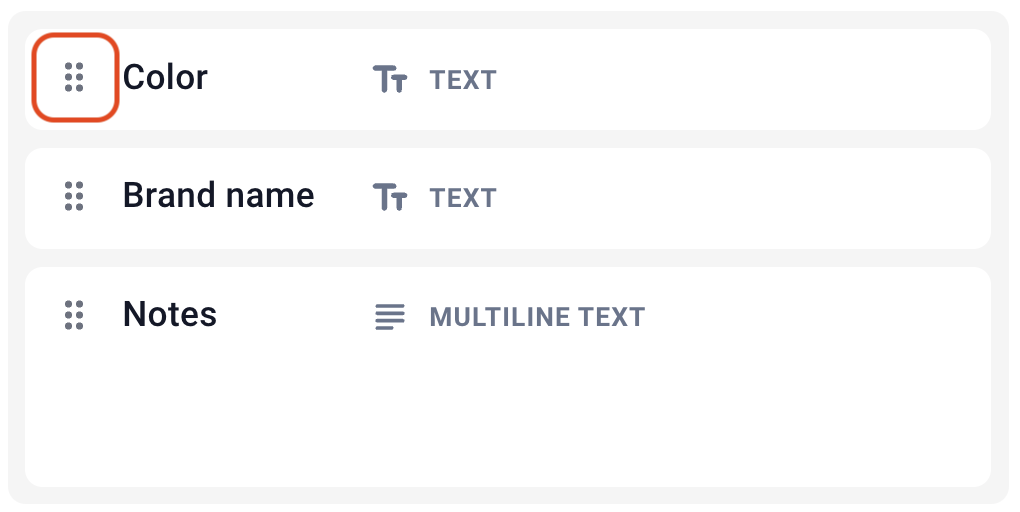
The field order controls how the fields appear on each asset page when viewing asset metadata. The field management interface allows intuitive drag-and-drop for organizing your item fields.
**Field organization features**
* **Visual drag-and-drop** - Click and drag fields to reorder them in the desired sequence
* **Real-time preview** - See field arrangement changes immediately as you drag
Once you have re-arranged the fields using the drag-and-drop interface, click "Save order" to apply the new ordering. You can also use "Reset order" to return to the previous field arrangement if needed.
Enhanced field management with drag-and-drop reordering
{% hint style="info" %}
The field layout configuration makes it easy to organize item fields logically, ensuring that the most important metadata appears prominently on asset pages.
{% endhint %}