> For the complete documentation index, see [llms.txt](https://guide.hardfin.com/llms.txt). Markdown versions of documentation pages are available by appending `.md` to page URLs; this page is available as [Markdown](https://guide.hardfin.com/fulfill-and-deploy/outbound-shipments.md).
# Outbound shipments
An **outbound shipment** is how you track assets and parts leaving your facilities for delivery to customers or other locations. Outbound shipments enable you to manage the logistics of finished goods, track in-transit inventory, and maintain visibility throughout the delivery process.
{% hint style="warning" %}
**IMPORTANT: Difference between inbound and outbound shipments**
Hardfin supports *two types of shipments* for different logistics needs:
**Outbound shipments** are for finished goods leaving your facilities:
* Ship assets and parts to customers or other locations
* Track in-transit inventory
* Support the fulfillment workflow for delivering to customers
**Inbound shipments** ([see relevant documentation](/source-and-build/inbound-shipments.md)) are for parts arriving at your facilities:
* Track parts from suppliers or vendors
* Receive parts into inventory
* Support the parts workflow for building assets
Both shipment types provide tracking, status management, and inventory visibility, but serve different stages of your operations.
{% endhint %}
Outbound shipments are part of the **fulfillment workflow** as assets move from your facilities to customer locations:
{% @mermaid/diagram content="---
title: Fulfillment workflow
config:
look: handDrawn
theme: neutral
--------------
graph LR
Asset --Ship--> InTransit\[In transit] --Deliver--> Customer
style InTransit fill:#F5F9FF
" %}
{% hint style="info" %}
**Understand outbound shipment relationships**
An **outbound shipment** includes assets and parts being sent from your facility to a destination. Each shipment is tracked with a unique shipment number (such as `SHP-2024-0001`) and can include tracking information for visibility throughout the delivery process. A shipment can also be associated with a fulfillment order (FO) in order to fulfill it.
{% endhint %}
{% hint style="warning" %}
Note: outbound shipments are for finished goods and assets leaving your facilities. For tracking parts arriving at your facilities, see [inbound shipments](/source-and-build/inbound-shipments.md).
{% endhint %}
## List all outbound shipments
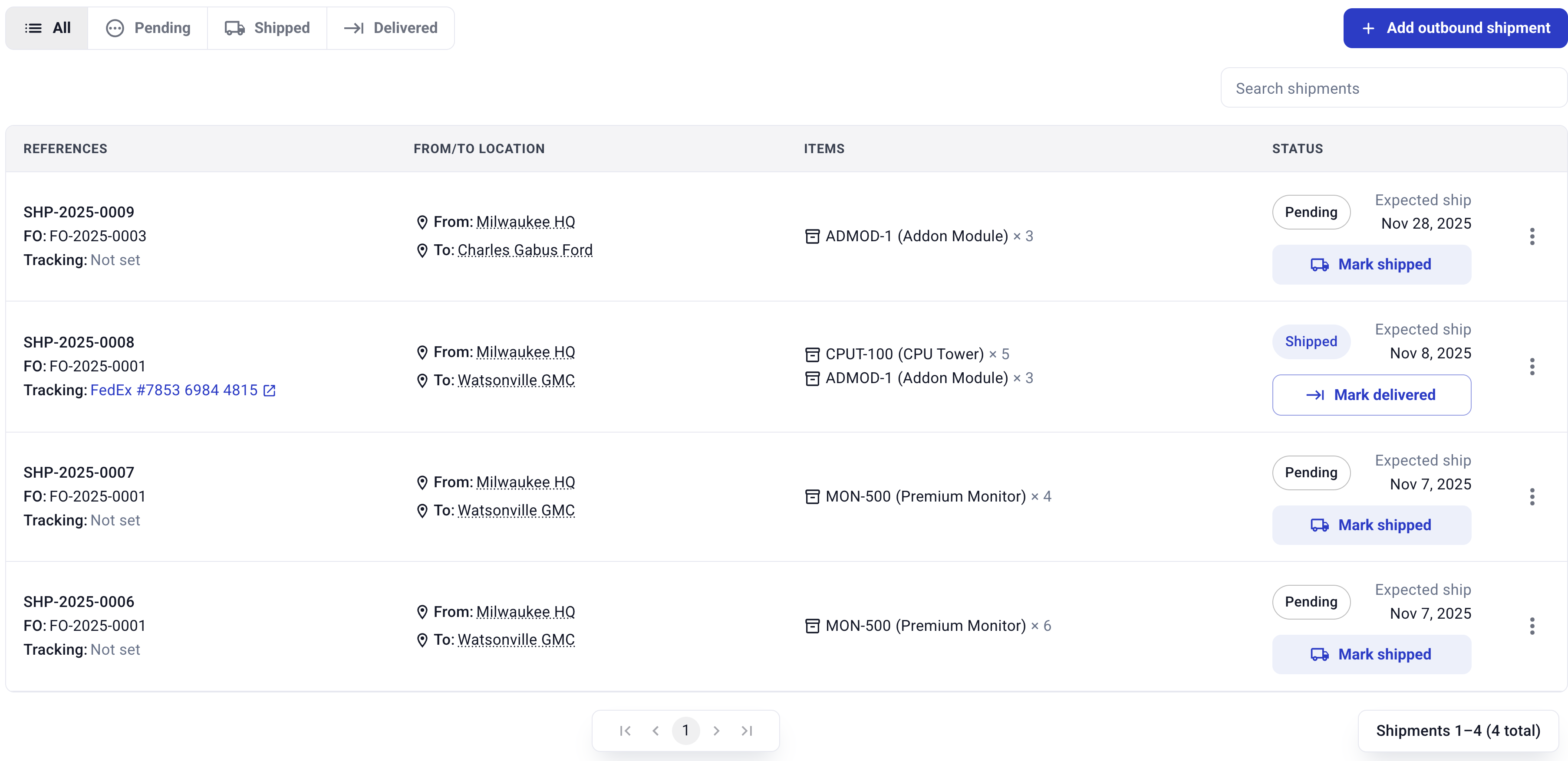
To see a list of all outbound shipments, navigate to the [outbound shipments page](https://assets.hardfin.com/outbound-shipments). Here you will see a table with each shipment, along with the following information:
* **Reference numbers.** Shipment reference number (assigned by Hardfin), FO number (entered when creating a shipment), and tracking number (optionally provided when recording a shipment)
* **From/to location.** The *from* location and *to* location of this shipment
* **Items.** The assets and parts included in the shipment with their quantities
* **Dates.** The dates associated with this shipment: ship date (the date that the shipment left your facility), expected delivery date (the date you expect the shipment to arrive at its destination), actual delivery date (the date the shipment was actually delivered)
* **Status.** Whether the shipment is pending, shipped, in transit, delivered, or cancelled
* **Actions.** For each shipment status, different actions are available. Pending shipments can be *Marked shipped* or *Cancelled*; Shipped shipments can be *Marked delivered*; In transit shipments can be *Marked delivered*; Delivered shipments are complete and can only be viewed; Cancelled shipments are no longer active
Outbound shipments list
Use the tabs to **filter** outbound shipments by status (Pending, Shipped, In transit, Delivered, or Cancelled). Use the **search** to find specific shipments by FO number, tracking number, or destination.
### Partial phase indicators
Shipments that are partially complete display a **Partial** indicator next to their status. This helps you quickly identify shipments where some but not all items have been processed. For example, a shipment may show "Shipped - Partial" when some items have been shipped but others are still pending, or "Delivered - Partial" when some items have been delivered but others are still in transit.
## View shipment details
To view the full details of an outbound shipment, click on the shipment in the list. The shipment details page displays comprehensive information about the shipment including:
* **Shipment information** - Reference number, FO number, tracking number, carrier, and current status
* **Locations** - Origin and destination locations with addresses
* **Items** - Complete list of assets and parts in the shipment with quantities and serial numbers (if applicable)
* **Timeline** - Key dates including ship date, expected delivery date, and actual delivery date
* **Notes** - Any notes or comments associated with the shipment
* **Activity history** - A log of all status changes and updates to the shipment
From the shipment details page, you can take actions on the shipment based on its current status, such as marking it as shipped, delivered, or cancelled.
## Create an outbound shipment
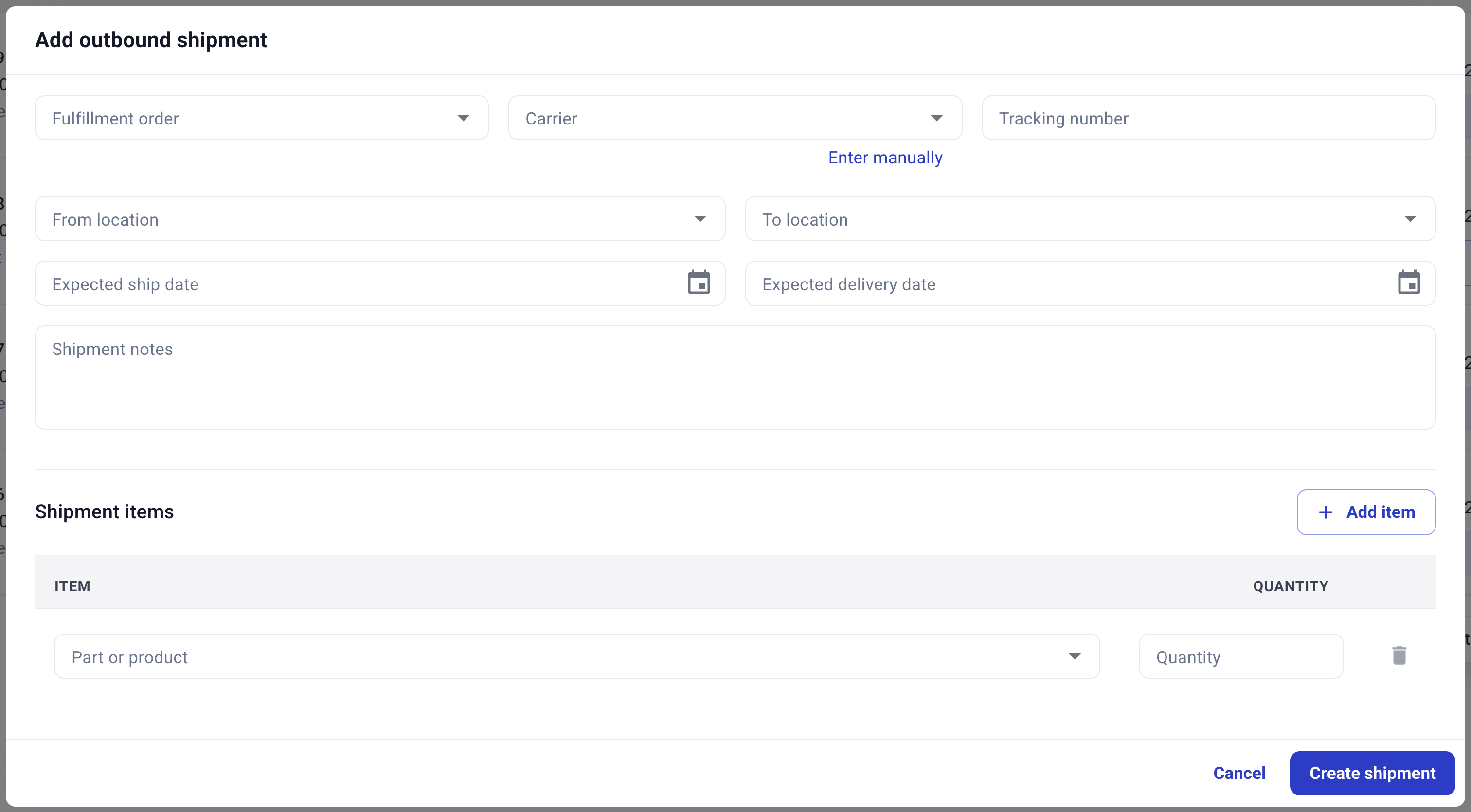
To create a new outbound shipment, click the "Add outbound shipment" button and a window will appear. Enter the appropriate detail for the shipment that you have available, being sure to enter the appropriate unit quantities of assets and parts in the shipment.
**Only the "From location" and "To" location and a list of items are required to create a shipment.** The expected dates and notes are optional. You can add tracking information and other details later as they become available.
Create an outbound shipment
Once all required information is entered, click "Create shipment" to confirm. The shipment will be created in pending status.
#### Fulfillment order numbers
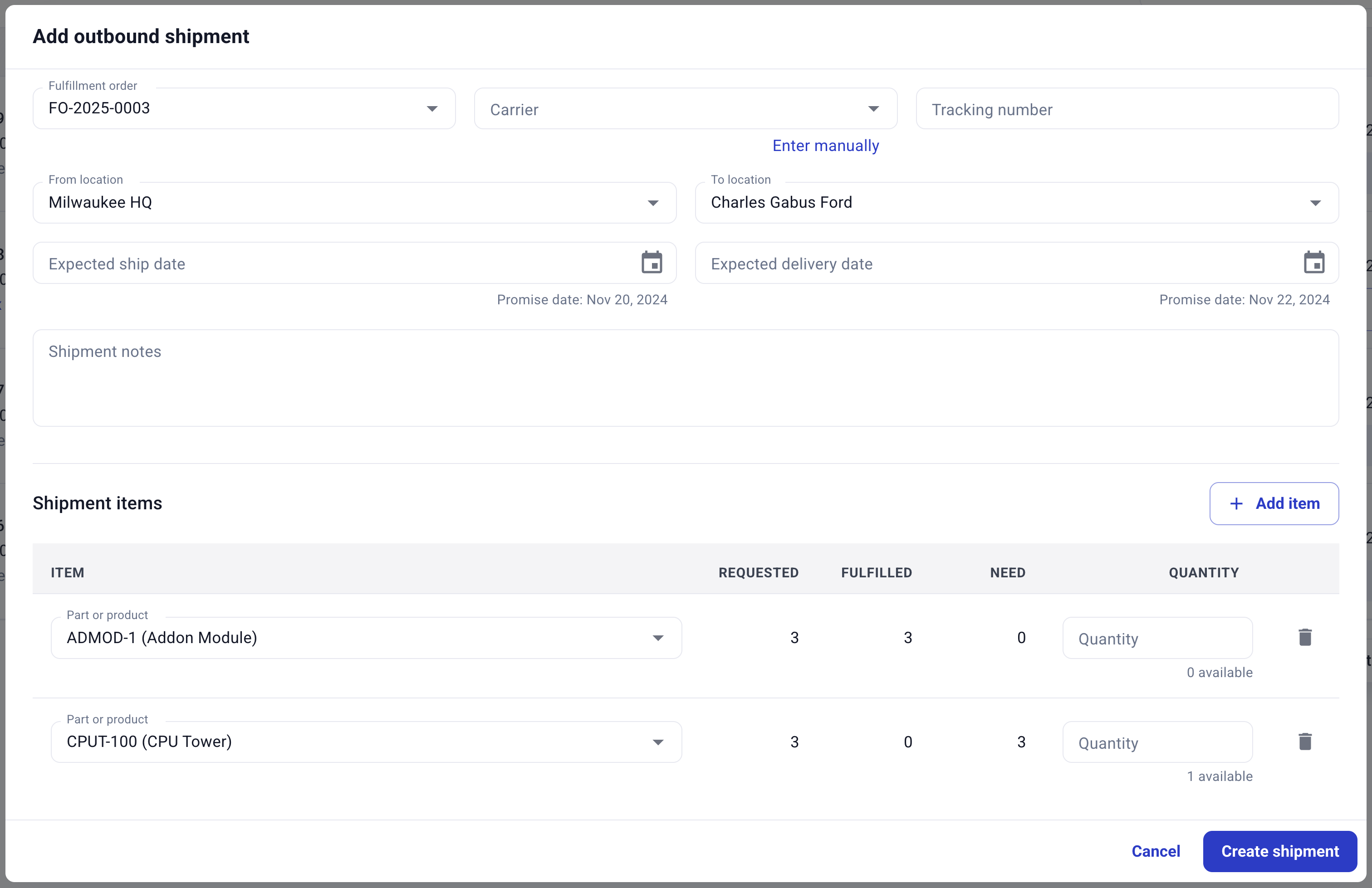
Each outbound shipment can be optionally associated with a [**fulfillment order (FO)**](/fulfill-and-deploy/fulfillment-orders.md). When associated, the FO number will appear on the shipment record and in the shipment details screen. You can select an FO from the dropdown when creating a shipment, or you can later add an FO from the dropdown when editing a shipment.
When you select an FO relevant details, such as the "From" and "To" locations, are populated automatically.
Outbound shipment with fulfillment order pre-populated
## Ship an outbound shipment
When a pending outbound shipment is ready to leave your facility, mark it as **shipped**. This action:
* Records the actual ship date
* Moves assets and parts into "in-transit" status
* Updates inventory to reflect items that have left your facility
* Makes the shipment visible in transit tracking
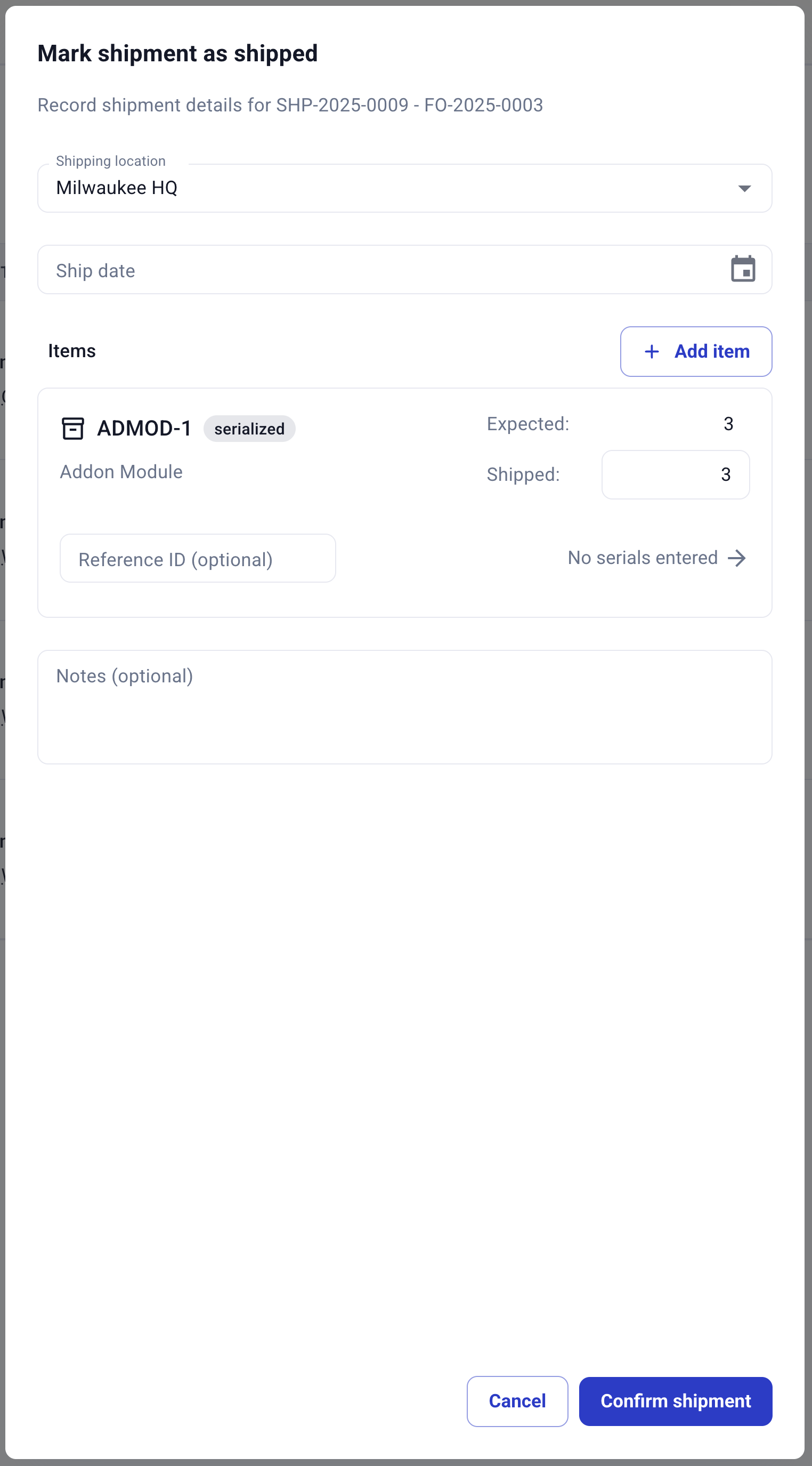
To mark a shipment as shipped, click the "Mark as shipped" action for the pending shipment. You can update the ship date such as shipment notes. If there are serialized assets on the shipment, the serials must be entered at this time.
Mark outbound shipment as shipped
When a shipment is shipped, its status updates to **Shipped** automatically.
{% hint style="danger" %}
Shipped shipments can only get **partial** updates: tracking information, "To" location, expected dates, and shipment notes.
{% endhint %}
### Correcting errors on shipped shipments
If you need to correct the quantity of bulk (non-serialized) items on a shipment that has already been shipped, you can use the **Correct error** action. This is useful when the actual shipped quantity differs from what was originally recorded.
To correct an error:
1. Navigate to the shipment details page for the shipped shipment
2. Click the "Correct error" action
3. Adjust the quantities for bulk items as needed
4. Confirm the correction
{% hint style="info" %}
The "Correct error" action is only available for bulk items (non-serialized parts). Serialized assets cannot be corrected in bulk after shipping because their serial numbers are tracked individually. To correct serialized asset errors, simply go to the corresponding asset and update its movement history.
{% endhint %}
## Carrier tracking
Outbound shipments support carrier tracking to help you monitor deliveries after items leave your facility. You can record the following carrier details on any outbound shipment:
* **Carrier name** — The shipping carrier handling the delivery (e.g., FedEx, UPS, DHL)
* **Tracking number** — The carrier-assigned tracking number for the shipment
Carrier tracking information can be added when creating a shipment, or updated at any time by editing the shipment. Once a tracking number and URL are recorded, the tracking number appears as a clickable link in the shipment list and detail views, allowing you to check delivery status directly from Hardfin. Shipment dates (ship, deliver) are updated automatically for known carriers.
## Track in-transit inventory
Once an outbound shipment is marked as shipped, the items in that shipment are tracked as **in-transit inventory**. This means:
* Assets and parts are no longer at your facility but haven't arrived at the destination yet
* You maintain visibility into what's currently being transported
* The items are not available for other shipments or projects until delivered
* You can track the location and status of items throughout the delivery process
In-transit inventory appears in your inventory views with a special status indicator showing the items are currently being shipped.
## Deliver an outbound shipment
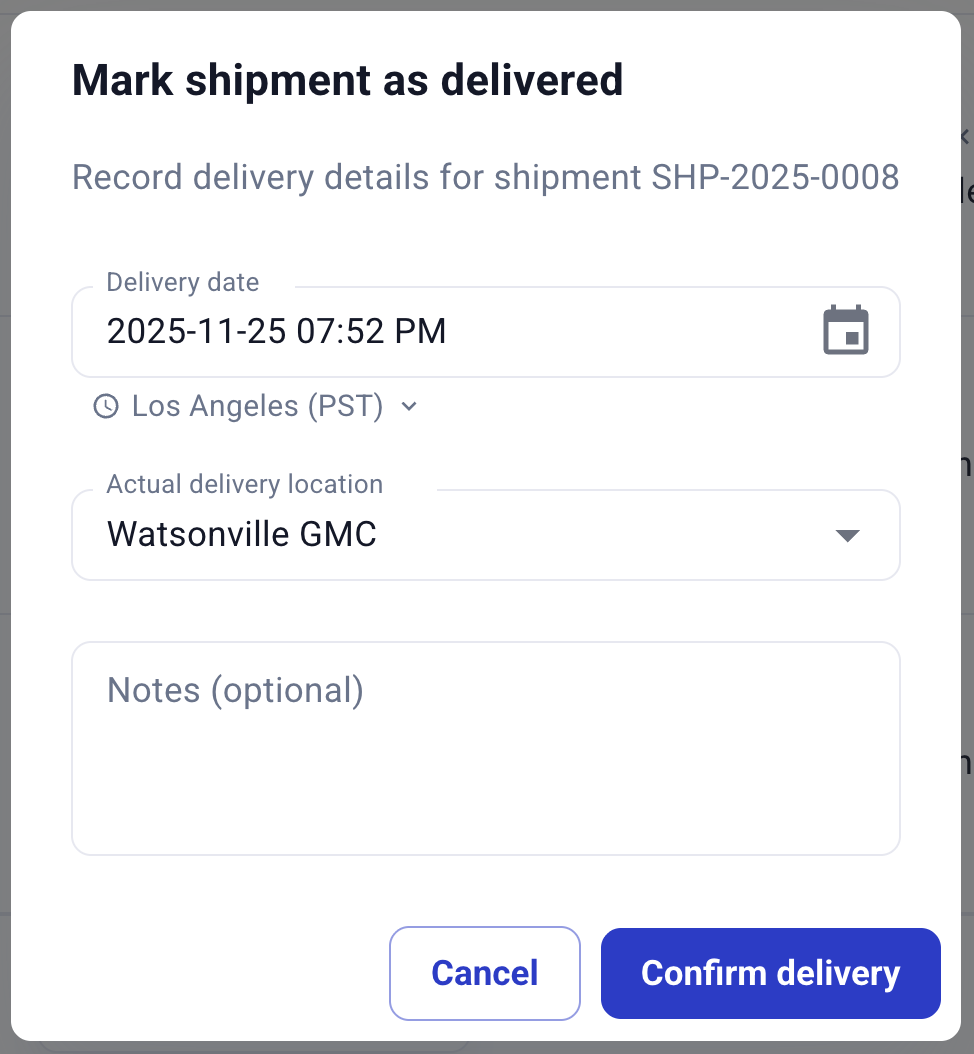
When a shipped outbound shipment arrives at its destination, mark it as **delivered**. This action:
* Records the actual delivery date and location
* Completes the shipment lifecycle
* Updates asset locations to reflect their new destination
* Removes items from in-transit status
To mark a shipment as delivered, click the "Mark as delivered" action for the shipped shipment. You can confirm the delivery date and location, and add any notes about the delivery.
Mark outbound shipment as delivered
When a shipment is delivered, its status updates to **Delivered** automatically.
Once a shipment is marked as delivered, the assets and parts are considered to be at the destination location and the shipment record is complete.
## Cancel an outbound shipment
If an outbound shipment is no longer needed, you can cancel it. Cancelling a shipment is useful when orders change, customers cancel, or logistics plans need to be adjusted.
To cancel a shipment, click the "Cancel" action for a pending shipment. You will be prompted to provide a reason for the cancellation. This reason is recorded for audit purposes and helps maintain clear records of why shipments were cancelled.
When a shipment is cancelled:
* The shipment status updates to **Cancelled**
* The items remain at their current location (no inventory changes occur)
* The shipment is no longer active but remains in the system for record-keeping
* Any associated fulfillment order is updated to reflect the cancellation
{% hint style="warning" %}
Only **Draft** shipments can be cancelled. Once a shipment has been marked as shipped, it cannot be cancelled because items are already in transit. If you need to handle a shipment that has already been shipped, you should mark it as delivered and then process a return if needed.
{% endhint %}
Cancelled shipments appear in the Cancelled tab on the outbound shipments list and can be viewed for historical reference.