> For the complete documentation index, see [llms.txt](https://guide.hardfin.com/llms.txt). Markdown versions of documentation pages are available by appending `.md` to page URLs; this page is available as [Markdown](https://guide.hardfin.com/source-and-build/inbound-shipments.md).
# Inbound shipments
An **inbound shipment** is how you track items destined to arrive at your facilities. A shipment can include quantities of any item from your [items catalog](/set-up-the-basics/items.md).
{% hint style="warning" %}
**IMPORTANT: Difference between inbound and outbound shipments**
Hardfin supports *two types of shipments* for different logistics needs:
**Inbound shipments** are for parts arriving at your facilities:
* Track parts from suppliers or vendors
* Receive parts into inventory
* Support the parts workflow for building assets
**Outbound shipments** ([see relevant documentation](/fulfill-and-deploy/outbound-shipments.md)) are for finished goods leaving your facilities:
* Ship assets and parts to customers or other locations
* Track in-transit inventory
* Support the fulfillment workflow for delivering to customers
Both shipment types provide tracking, status management, and inventory visibility, but serve different stages of your operations.
{% endhint %}
Inbound shipments are the first step in the **inventory workflow** for both parts and products:
{% @mermaid/diagram content="---
title: Inventory workflow
config:
look: handDrawn
theme: neutral
--------------
graph LR
Shipment --Receive **parts**--> Inventory --Build--> Assembly --Register--> Asset
Shipment --Receive **products**--> Asset
style Shipment fill:#F5F9FF" %}
{% hint style="info" %}
**Understand shipment relationships**
A **shipment** can include:
* **Parts** - Individual components from your parts catalog, each with a quantity. These arrive in parts inventory at their destination location.
* **Products** - Complete product units from your products catalog, each with a quantity. When received, products are automatically registered as [serialized assets](/run-your-business/assets.md).
You can include both parts and products in the same shipment.
{% endhint %}
{% hint style="warning" %}
Note: shipments track inbound inventory arriving at your facilities. To manage ongoing business operations and logistics for assets already in the field, see [moving assets](/run-your-business/assets/move-assets.md).
{% endhint %}
## List all shipments
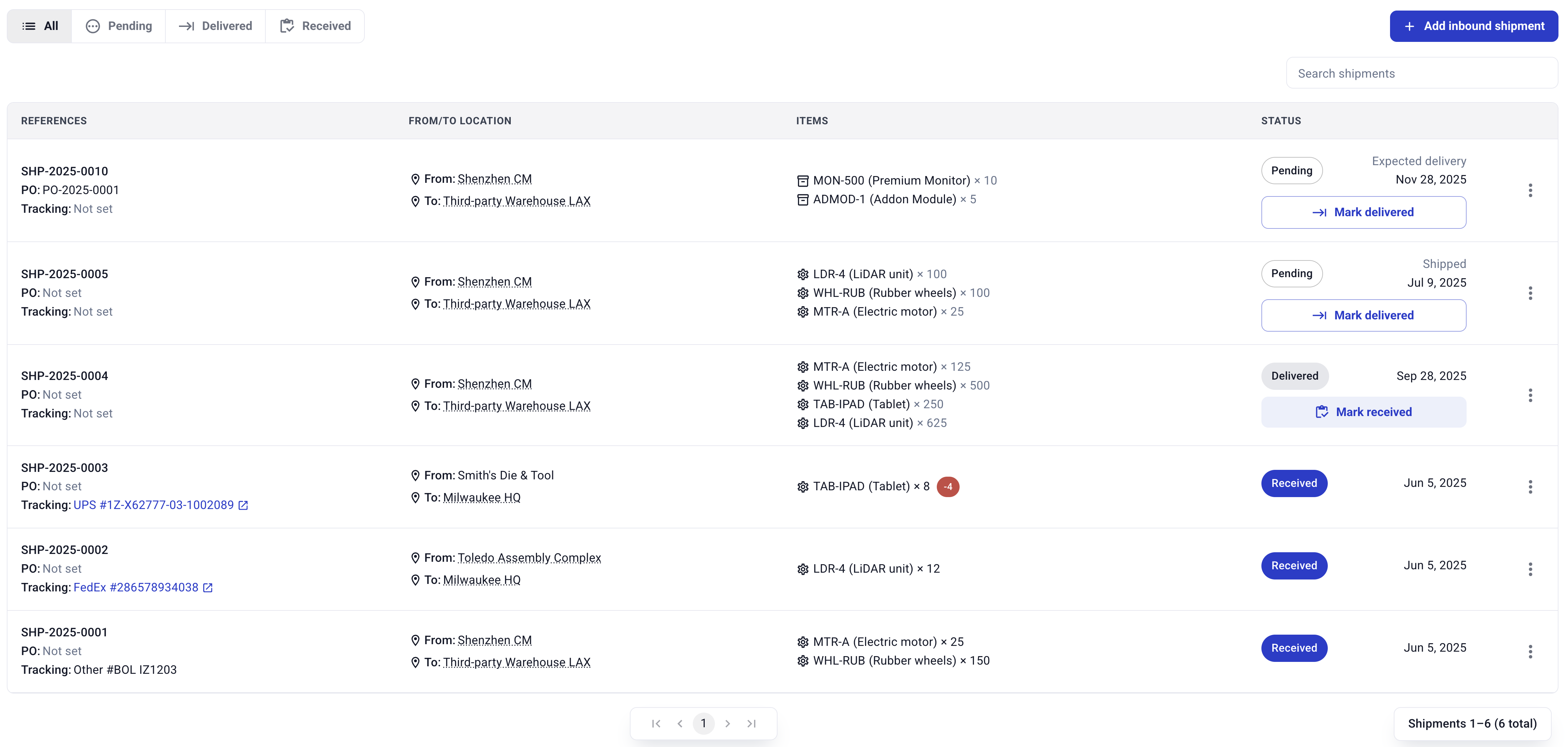
To see a list of all shipments, navigate to the [inbound shipments page](https://assets.hardfin.com/shipments/inbound). Here you will see a table with each shipment, along with the following information:
* **Reference numbers.** Shipment reference number (assigned by Hardfin), PO number (entered when creating a shipment), and tracking number (optionally provided when recording a shipment)
* **From/to location.** The *from* location and *to* location of this shipment.
* **Items.** The part and product SKUs and unit quantities expected for each shipment.
* **Dates.** The dates associated with this shipment: ship date (the date that the sender sent the shipment), promise date (the date the sender committed to deliver the shipment), expected date (the date you or the carrier actually expect the shipment to arrive), delivered date (the date the shipment was actually delivered), received date (the date the contents of the shipment were received in inventory.
* **Status.** Whether the shipment is open, shipped, delivered, or received.
* **Actions.** For each shipment status, different actions are available. Open shipments can be *Marked delivered*; Delivered shipments can be *Marked received*; Received shipments are complete and can only be viewed.
Use the tabs to **filter** shipments by Open, Shipped, Delivered, or Received. Use the **search** to search all shipments.
Inbound shipment list page
### Partial phase indicators
Shipments that are partially complete display a **Partial** indicator next to their status. This helps you quickly identify shipments where some but not all items have been processed. For example, a shipment may show "Delivered - Partial" when some items have been delivered but others are still pending, or "Received - Partial" when some items have been received into inventory but others are still awaiting receipt.
## View shipment details
To view the full details of an inbound shipment, click on the shipment in the list. The shipment details page displays comprehensive information about the shipment including:
* **Shipment information** - Reference number, PO number, tracking number, carrier, and current status
* **Locations** - Origin (supplier) and destination locations with addresses
* **Items** - Complete list of parts and products in the shipment with expected and received quantities
* **Timeline** - Key dates including ship date, promise date, expected date, delivered date, and received date
* **Notes** - Any notes or comments associated with the shipment
* **Activity history** - A log of all status changes and updates to the shipment
From the shipment details page, you can take actions on the shipment based on its current status, such as marking it as delivered or receiving items into inventory.
## Add a shipment
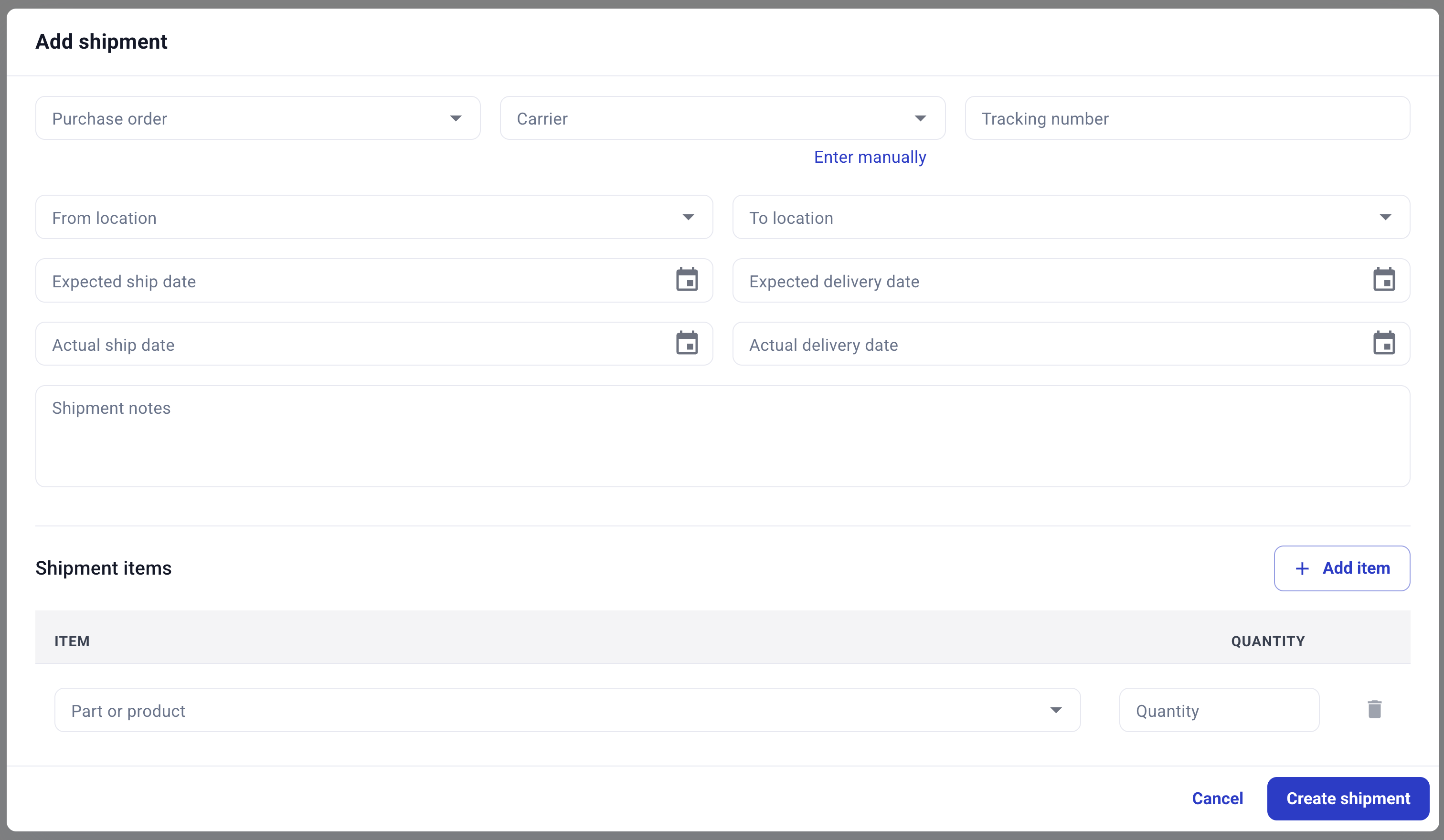
To create a new inbound shipment, click the "Add inbound shipment" button and a window will appear. Enter the appropriate detail for the shipment that you have available, being sure to enter the appropriate unit quantities of parts and products in the shipment.
**Only the "To" location and a list of items are required to create a shipment.** The "From" location, expected dates, actual dates, and notes are all optional. You can add tracking information and other details later as they become available.
Once all required information is entered, click "Create shipment" to confirm. The shipment will be created in open status.
"Add inbound shipment" window
#### Shipping against a purchase order (PO)
Once a [purchase order (PO)](/source-and-build/purchase-orders.md) has been selected from the dropdown, relevant details will populate automatically, such as "From" and "To" and the full items list.
Additionally, the current context of shipments against the PO will be provided inline based on how many units were *Ordered*, how many units have been *Recorded* (open, shipped, or delivered), and how many units are *Needed*.
Record a shipment against a PO window
#### Bulk creation
To import shipments in bulk, configure an integration with an ERP, upload a CSV or XLSX file, or to set up [API access](/advanced-options/api-access.md), please [contact support](mailto:support@hardfin.com).
## Marking a shipment as delivered
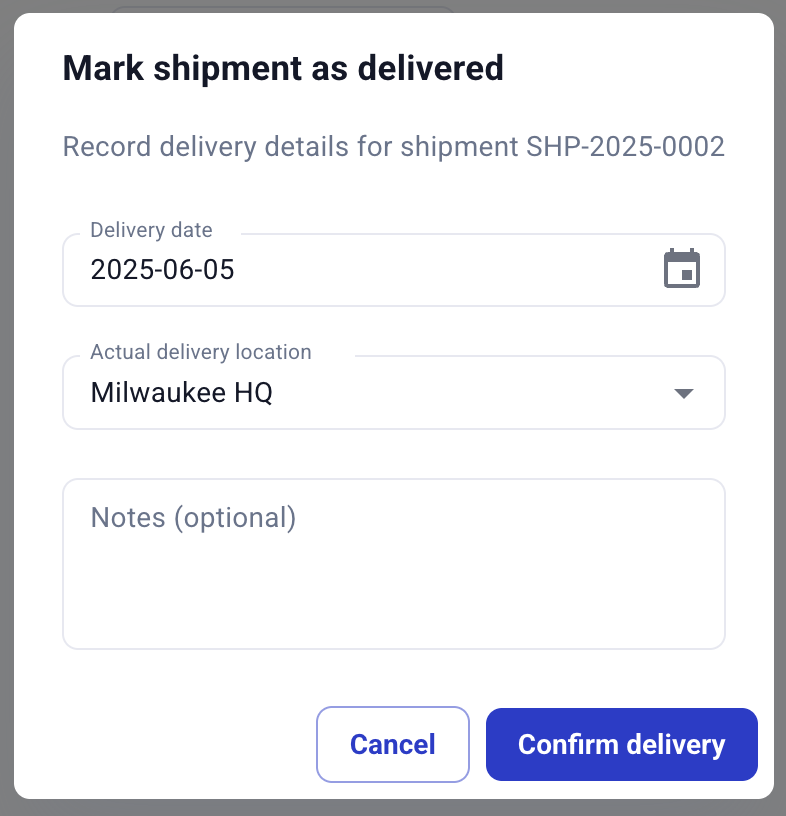
Once a shipment is open, it can be marked **delivered** after the shipment has been delivered to its delivery location. When a delivery is recorded, the actual delivery date and actual delivery location can be specified. Notes can also be provided about the delivery.
"Mark shipment as delivered" window
Marking a shipment as delivered changes the shipment status, but does **not** bring the items into inventory. To bring items into inventory, a shipment must be *received*.
## Receiving a shipment
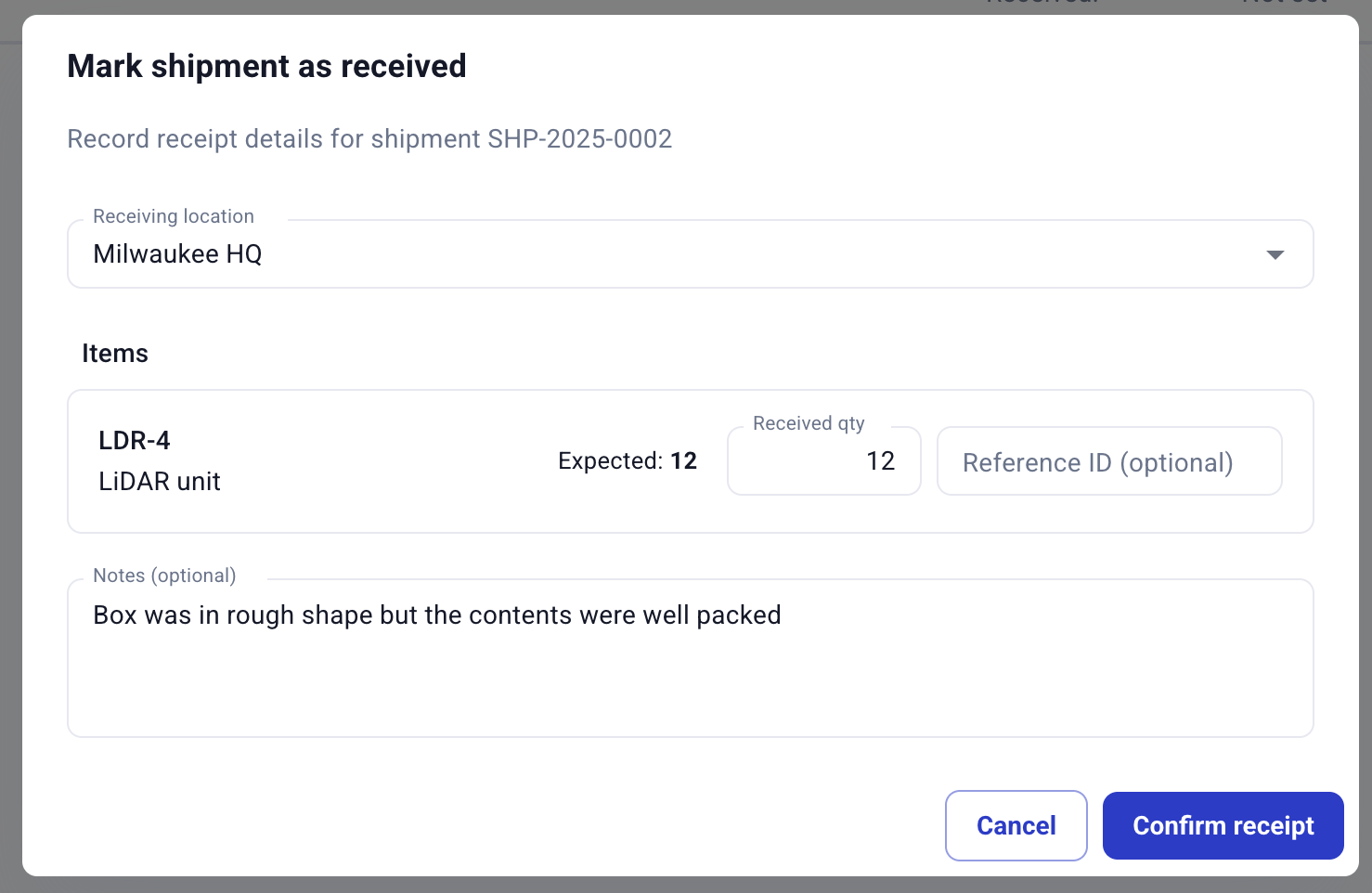
Once a shipment is delivered, items can be **received** into inventory. The date of receipt is automatically recorded at the time the shipment is received in Hardfin. You can specify the receiving location, the received unit quantity for each item, and an optional reference ID, such as a supplier batch number. Notes can also be provided about the delivery.
When receiving a shipment:
* **Parts** are received into parts inventory and tracked by quantity at the receiving location
* **Products** can be received with serial numbers. Serialized products are automatically registered as assets when received.
### Receiving parts
When receiving parts shipments, the parts are added directly to your [parts inventory](/source-and-build/inventory.md) and become available for building assemblies or other inventory operations.
#### Collecting part serials
For serialized parts, you can *optionally* capture serial numbers during the receiving process. The serial number collection is optional and is for reference and historical tracking only — it is not validated against other parts in inventory.
### Receiving products
When receiving product shipments, the finished products are automatically processed through a streamlined workflow that converts them to assets. This is designed for finished goods that don't require assembly, simplifying inventory management for new assets.
#### Collecting asset serials
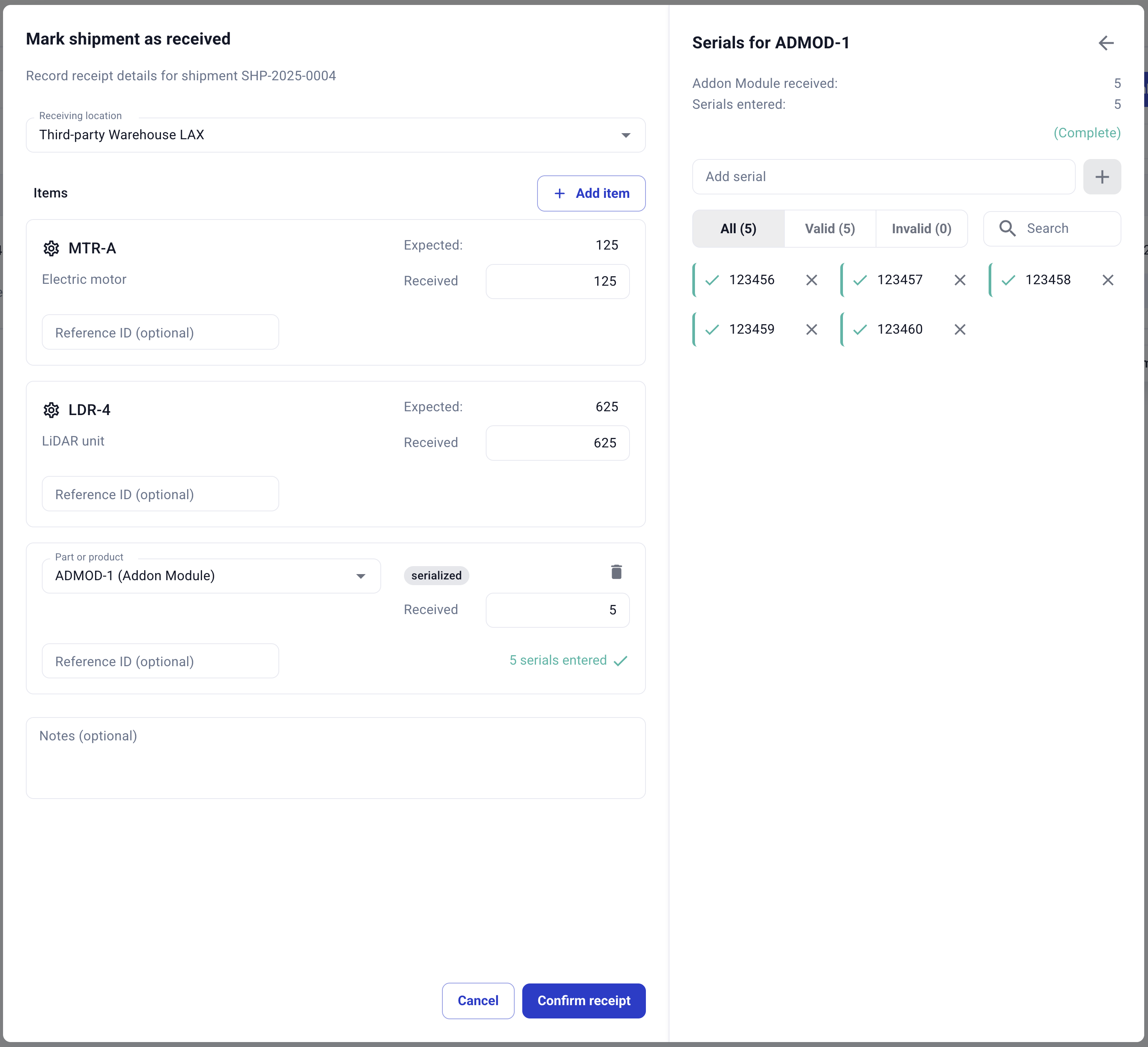
For serialized assets, you *must* record individual serials during the receiving process. Serials are unique across the application and cannot be duplicated.
To make this easy, the serial number collection provides real-time feedback to ensure accuracy:
* **Count status** - Shows how many serial numbers have been entered and how many are needed based on the received quantity
* **Validation feedback** - Identifies if any serial numbers are duplicated, invalid, or exceed the required quantity
* **Clear summary** - Displays counts in an organized format for easy verification
Serial entry when receiving serialized assets
This feedback helps prevent errors and ensures all required serial numbers are captured before completing the shipment receipt.
#### Serial number preview
Before completing the receiving process, you can preview the serial numbers assigned to each line item directly on the shipment detail view. This allows you to verify serial assignments at a glance — confirming which serials are expected for each item — without needing to start the full receive workflow.
#### Bulk serial upload
For shipments with many serialized items, you can upload serial numbers in bulk using a CSV or TXT file instead of entering them manually. This is useful when receiving large quantities of serialized products.
To upload serials in bulk:
1. Click the "Upload" button in the serial number collection section
2. Select a CSV or TXT file containing your serial numbers (one serial per line)
3. The system validates the uploaded serials and displays any errors
4. Review the uploaded serials and confirm to proceed
The bulk upload supports the same validation as manual entry, checking for duplicates and ensuring the correct quantity of serials is provided.
### Receipt confirmation
Before finalizing shipment receipt, a confirmation step allows you to review and verify all receipt details. This confirmation modal displays:
* **Received quantities** - Review the quantities being received for each item
* **Location details** - Confirm the receiving location is correct
* **Reference information** - Verify any batch numbers or reference IDs
* **Notes and comments** - Add any final notes about the receipt
This confirmation step helps prevent errors by providing a clear review opportunity before committing receipt data to inventory.
Once a shipment has been received, the items are available in [inventory](/source-and-build/inventory.md) and the shipment can no longer be updated. If any additional modifications are needed, they should be made as inventory adjustments.
### Handling overages
Shipment receipts can accommodate receiving more items than originally expected in the shipment. When actual received quantities exceed planned quantities:
* **Overage recording** - The system allows you to record quantities above the original shipment amounts
* **Automatic tracking** - Overages are automatically tracked and linked to the original shipment
* **Inventory updates** - All received quantities, including overages, are properly added to inventory
* **Audit trail** - Overage information is maintained in the shipment record for future reference
Once a shipment has been received, the parts are available in [inventory](/source-and-build/inventory.md). Shipment information can be edited as needed to correct errors or update details.
## Editing shipments
Shipments can be modified throughout their lifecycle to accommodate changing business needs:
**Editable shipment information**
* **Core details** - Shipment items, quantities, and shipping information can be updated
* **Delivery details** - Carrier information, tracking numbers, and delivery dates can be modified
* **Receipt information** - Previously finalized receipts can be edited to correct errors or update quantities
* **Reference data** - PO numbers, batch references, and notes can be updated as needed
**When to edit shipments**
* **Delivery changes** - Update carrier or tracking information when shipping details change
* **Quantity corrections** - Adjust expected or received quantities when discrepancies are discovered
* **Receipt corrections** - Modify receipt details when errors are found after receiving
* **Reference updates** - Add or correct PO numbers, batch IDs, or other reference information
This reduces the need for shipment cancellation and recreation, making it easier to maintain accurate records.
## Batch tracking
Upon receipt, the inventory for each **part** is automatically assigned a unique batch identifier. This batch identifier is linked back to the shipment and to the shipment receipt date. **Products** are tracked individually as serialized assets.
For parts batches, Hardfin automatically follows the **first-in first-out (FIFO)** model of batch tracking. As parts are used — whether they are transferred, adjusted, built into [assemblies](/source-and-build/assemblies.md), or used for replacements — the oldest units are considered to be used first.
For more information, read about [batching and traceability](/source-and-build/inventory.md#batching-and-traceability) tracking in inventory.
{% hint style="info" %}
**Batch costing** is coming soon! Please [contact us](mailto:support@hardfin.com) if you'd like to enroll your team in the batch costing beta when it is released.
{% endhint %}
.png?alt=media)