Companies

A company is an organization that you do business with. Companies can be designated as customers (who purchase from you), suppliers (who you purchase from), or both.

Understand company relationships

A company can be associated with many locations, where assets can be located. A single company can have multiple locations, which helps in tracking where assets are located and where services are provided. (A single location can belong to only one company.)

Companies can have one or both of these roles:

  • Customer - A company that purchases from you

  • Supplier - A company that you purchase from

List all companies

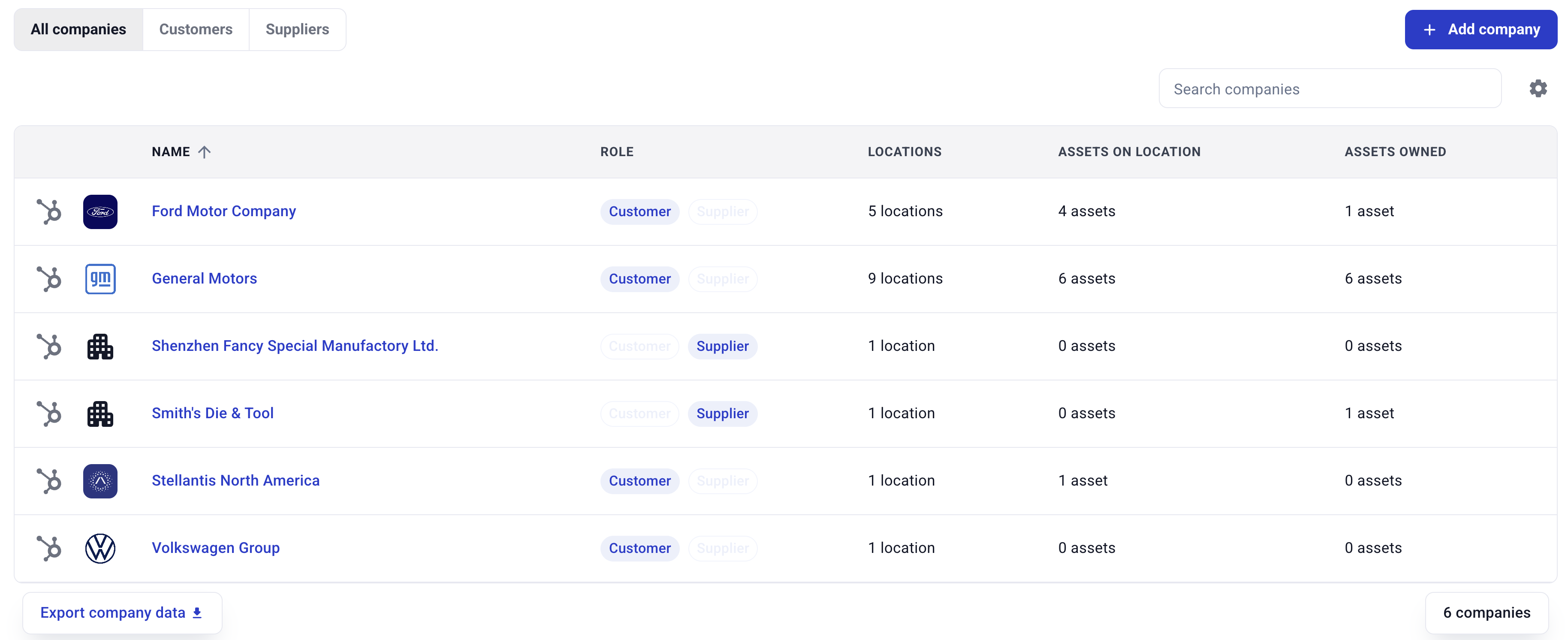
To see a list of all companies, navigate to the companies page. Here you will see a table with company names, role indicators (customer/supplier), associated locations, how many assets a company has on location, and information about owned assets.

Use the search or filter options to refine the company list. You can filter by:

  • All companies - View all companies regardless of role

  • Customers - View only companies designated as customers

  • Suppliers - View only companies designated as suppliers

Company list view with role filters

View individual company details

To view the full details of a company, click the company's name in the company list:

Link to open company details

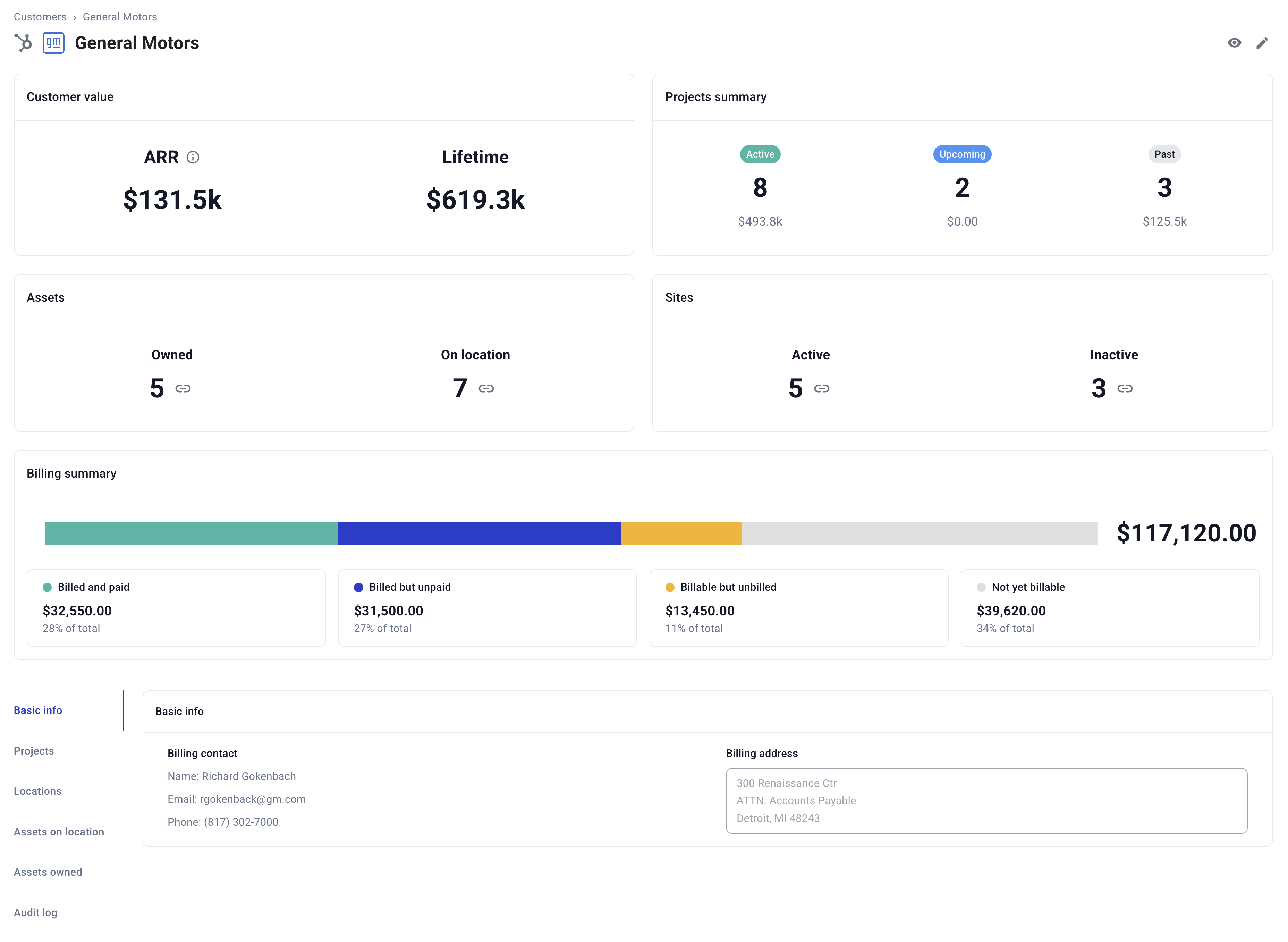
A company detail page will appear showing the complete company details:

Company details page

The company detail page is oriented to give a comprehensive overview of your business relationship with the company:

  • Company value - the ARR and lifetime value (for customer relationships)

  • Projects summary - a summary of active, upcoming, and past projects for the company

  • Assets - breakdown of assets owned by the company and on location with the company

  • Sites - breakdown of company locations by active and inactive status

The page also includes a billing summary for the company across all the company's projects (for customer relationships).

Finally, this page includes detailed views to access the following information related to your company record:

  • Projects - projects that are related to this company

  • Locations - locations that belong to this company

  • Assets on location - a list of assets that are located at this company's locations

  • Assets owned - a list of assets that are owned by this company

Note that assets may be at a company's location even if they are not owned by that company. This is usually the case for hardware-as-a-service business models.

Also note that assets may be owned by a company even if they are not at a location owned by that company. This is usually the case for assets that have been returned for service or repair.

Company details also include a full audit log of the changes made to the company over time.

Create a company

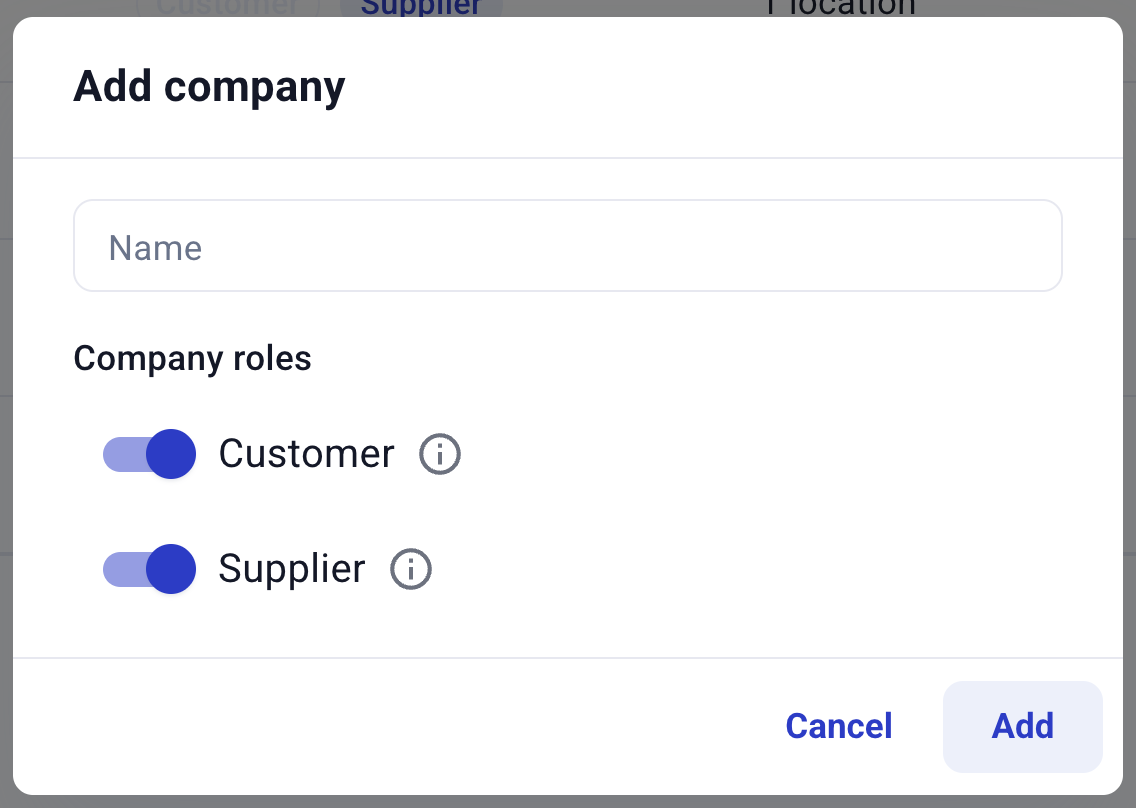
To create an individual company, click the "Add company" button and a window will appear. Enter the company's name, specify whether the company is a customer, supplier, or both, and click "Add."

"Add company" window

Name is the only field required to create a new company. The role flags (customer/supplier) can be set during creation or edited later.

Company roles

When creating or editing a company, you can specify:

  • Customer? - Turn on if the company purchases from you (for projects and fulfillment)

  • Supplier? - Turn on if you purchase from the company (for procurement)

A company can be both a customer and a supplier. Tags appear next to the company name throughout the interface to help you quickly identify company relationships.

Default role assignment:

  • Companies created from customer contexts (such as project creation) automatically default to customer role

  • Companies created from supplier contexts (such as procurement) automatically default to supplier role

  • You can adjust these roles at any time

Bulk creation

To import companies in bulk, you can configure an integration with a CRM or ERP, or set up API access. For more options, please contact support.

Edit a company

To edit a company, click the pencil icon ✏️ in the company details window.

Edit company details button

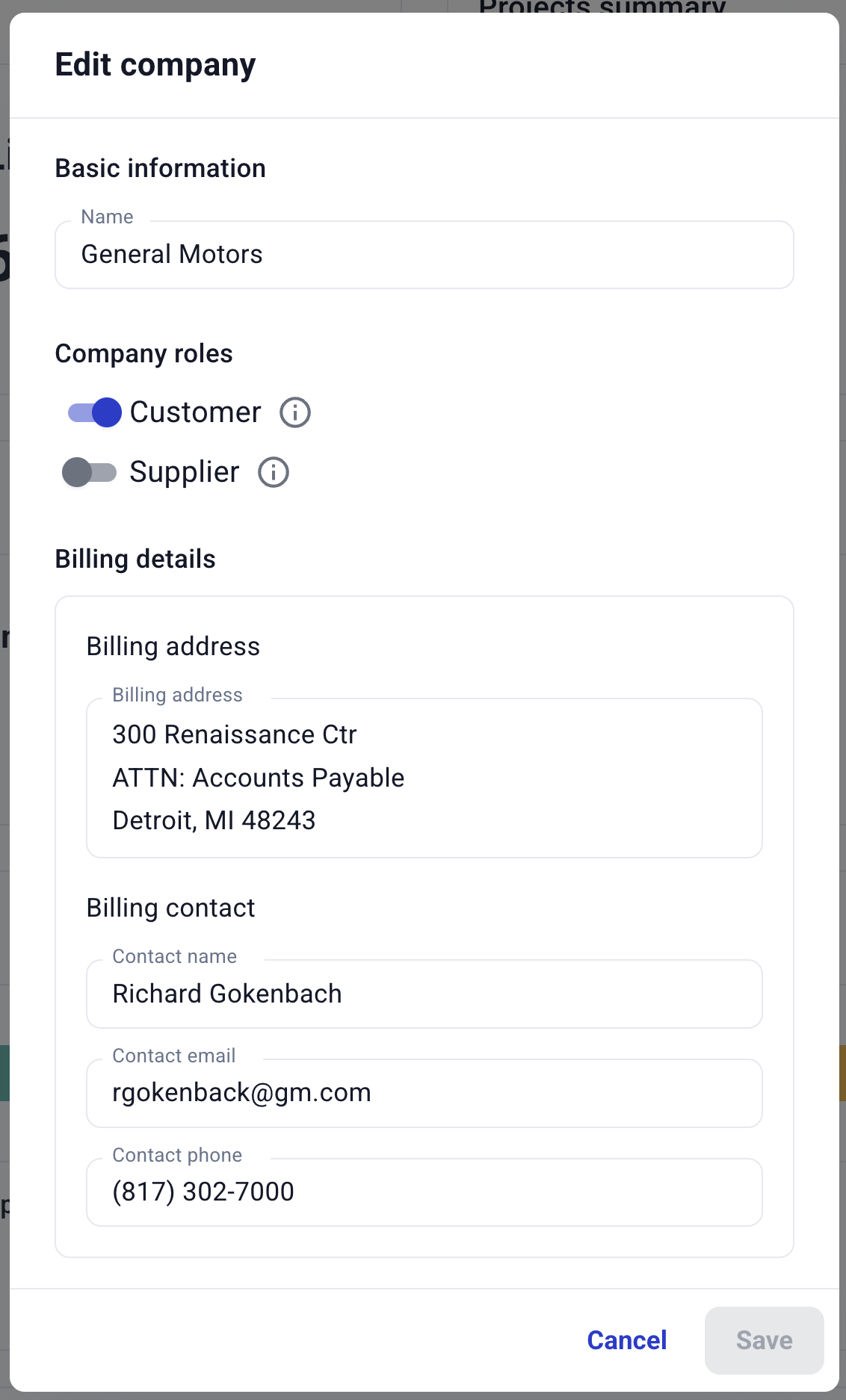
A small window will appear to edit the company's name, role flags (customer/supplier), billing contact, and billing address:

Edit company details window

Hover over the information icons next to the role flags to see tooltips explaining their purpose.

Merge companies

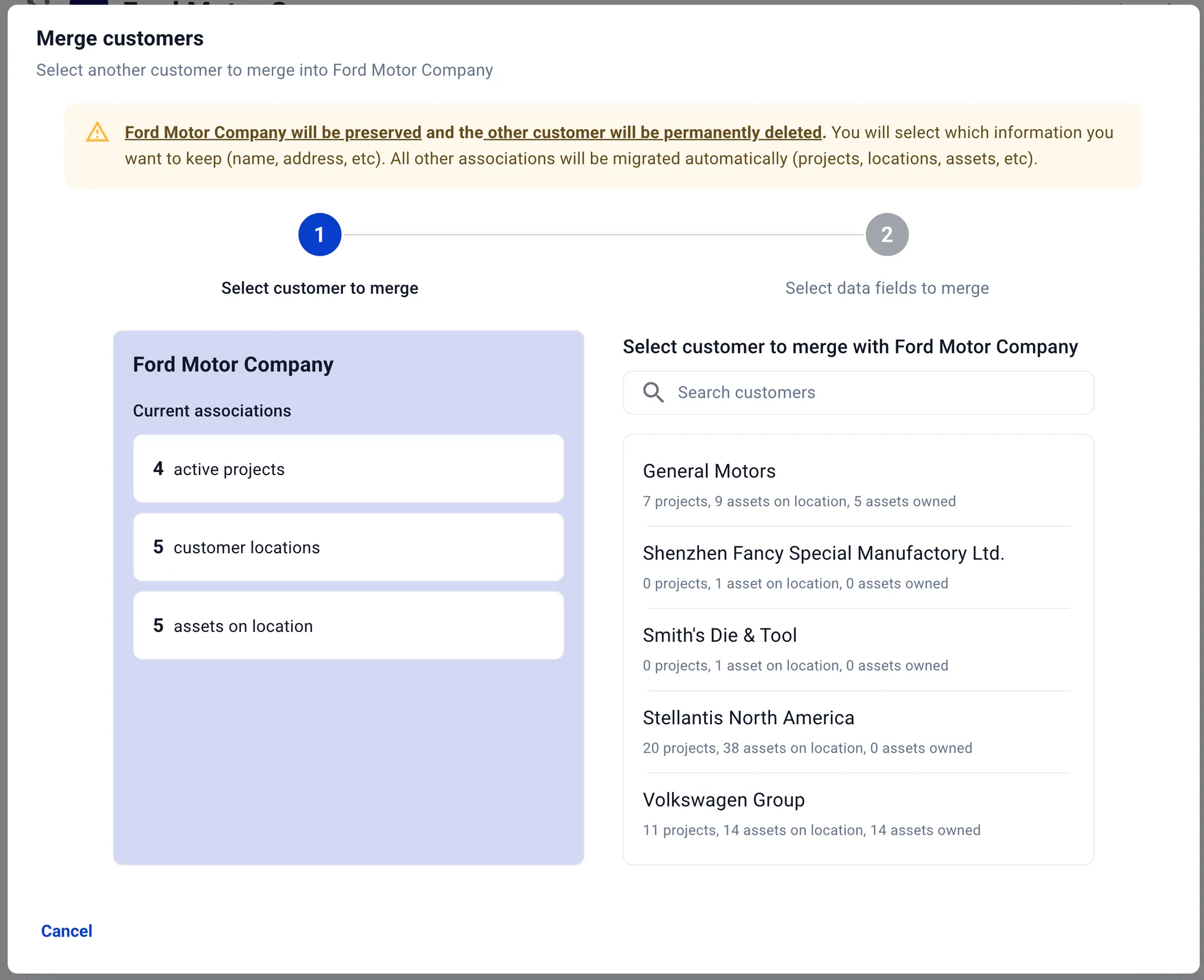
When you have duplicate company records or need to consolidate company data, you can merge two companies into a single record. This process combines all associated data (projects, locations, assets, billing information) from both companies into one retained company record.

Merge companies window

To merge companies:

  1. Navigate to the company you want to keep (the "retained" company)

  2. Click the merge icon in the top right of the company details window

  3. Select the company you want to merge into this record (the "removed" company)

  4. Review the merge details, including role indicators for both companies

  5. Click "Merge companies" to complete the process

The merge process automatically:

  • Transfers all locations from the removed company to the retained company

  • Consolidates all projects and associated billing information

  • Moves all asset ownership and location assignments

  • Combines role flags (if either company is a customer, the merged company will be a customer; same for supplier)

  • Preserves audit history for both companies in the new merged company record

  • Updates external system references if external IDs are configured

External company ID

Each company can have an optional external ID field that stores identifiers from external systems such as a CRM, ERP, accounting software, or internal database. This field:

  • Appears in the company basic information section

  • Can be edited by clicking on the field

  • Is included in company merge operations

  • Helps maintain consistency when integrating with other business systems

  • Is tracked in the audit log when changed

The external ID is particularly useful when merging companies, as it helps ensure the correct external system references are maintained after the merge.

Archive a company

Archiving objects hides the object from the list view and dropdown menus. The object can still be viewed in the list by selecting the "Archived" option. Archived objects still appear in dropdown menus when searched by name.

To archive a company that is not yet archived, click the archive icon 👁️‍🗨️ in the company details window.

"Archive company" button

A small badge will appear on the company indicating Archived.

"Archived" badge for a company

The company will now be visible in the company list only when "Include archived companies" is selected.

Archived company showing in list

To unarchive a company that is already archived, edit the company and select the unarchive icon 👁️‍🗨 in the company details window.

"Unarchive company" button

Last updated