square-listItems

The items catalog is where you manage all the items your organization tracks in Hardfin. An item represents anything your business works with — whether it's a piece of equipment you deploy to customers, a service you offer, or a component you keep in inventory.

circle-check
circle-info

Understand item relationships

A tracked device is usually associated with many assets, which correspond to all the assets of that item type. There can be many assets for a single tracked device, which helps to group assets. (Note: a single asset can belong to only one item type.)

For example: a single tracked device Lawnmower might be associated with many assets with serial numbers MOW-101, MOW-102, MOW-103, and so on.

A bulk item is associated with inventory, which tracks how many units of the item you have at each location. For example, you may have 100 units of bulk item LDR-4.1 in your Chicago warehouse.

List all items

To see a list of all items, navigate to the item catalogarrow-up-right under the "Setup & configure" menu.

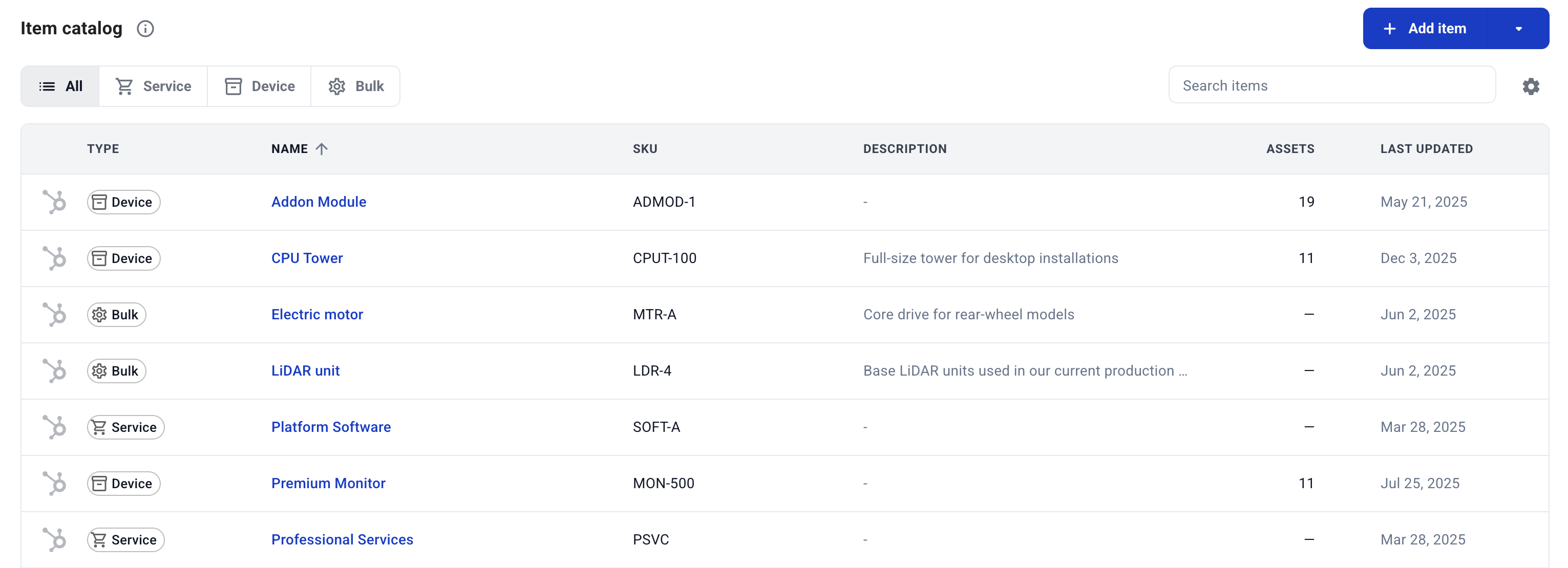
The items catalog is a table with item SKUs, names, item type (tracked device, service item, or bulk item), and any associated assets (if applicable).

Use the search or filter options to refine the items catalog. You can also filter by item type using the tabs.

Item catalog view

CRM integration status

If your organization has a CRM or ERP integration configured (such as Salesforce or NetSuite), the items table displays an integration column showing which items are linked to external systems. This column appears when items have integration links configured.

For linked items, clicking the integration indicator opens the corresponding record in the external system. This allows you to quickly verify integration status and access linked records directly from the items catalog.

Export items

You can export your items catalog to an Excel file by clicking the "Export" button on the items list page. The export includes multiple tabs:

  • Items — All item data including SKUs, names, item types, and associated metadata

  • Accounting defaults — Item accounting defaults including cost basis, useful life, salvage value, and advanced cost breakdown categories for each tracked device

The exported file can be used for reporting, analysis, or importing into other systems.

View individual item details

To view the full details of an item, click the name of the item. The item details page will appear showing the item details.

Item details page

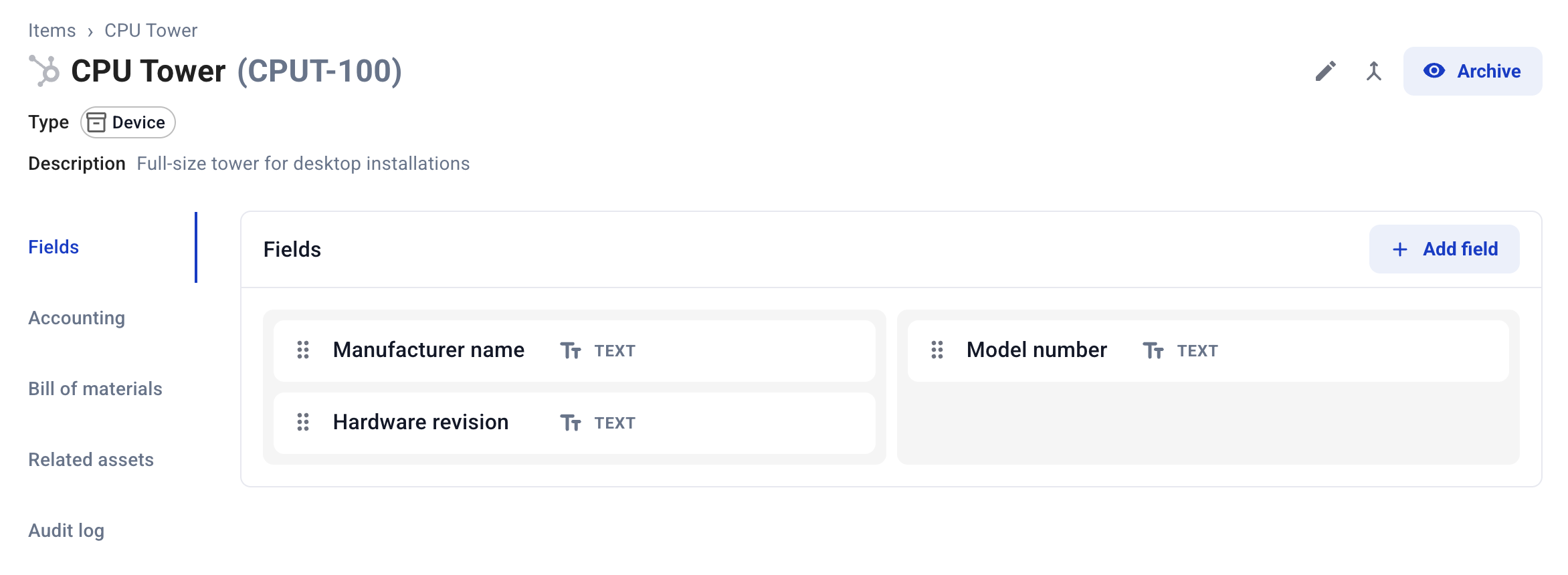
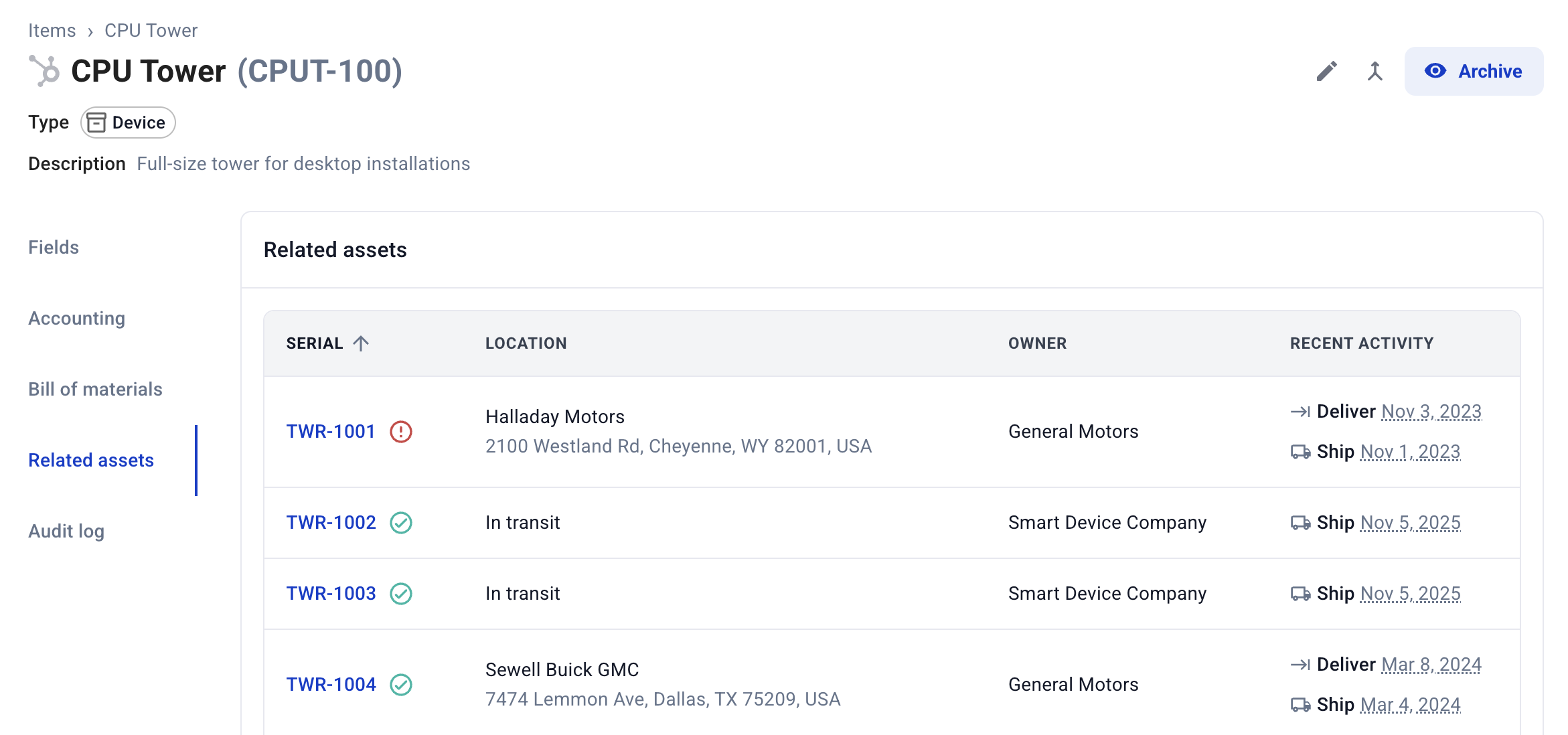
This page includes the item name, SKU, item type, and archive status. For tracked devices, it includes sections for item fields, the bill of materials, as well as all assets associated with this item:

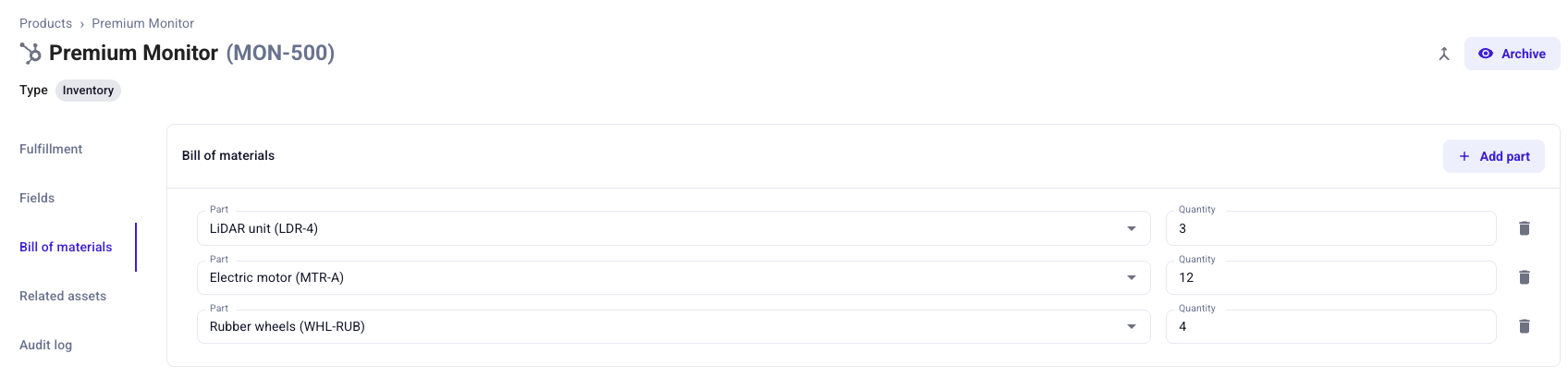
Item BOM example
Related assets for a tracked device
Item details also include a full audit log of the changes made to the item over time.

Create an item

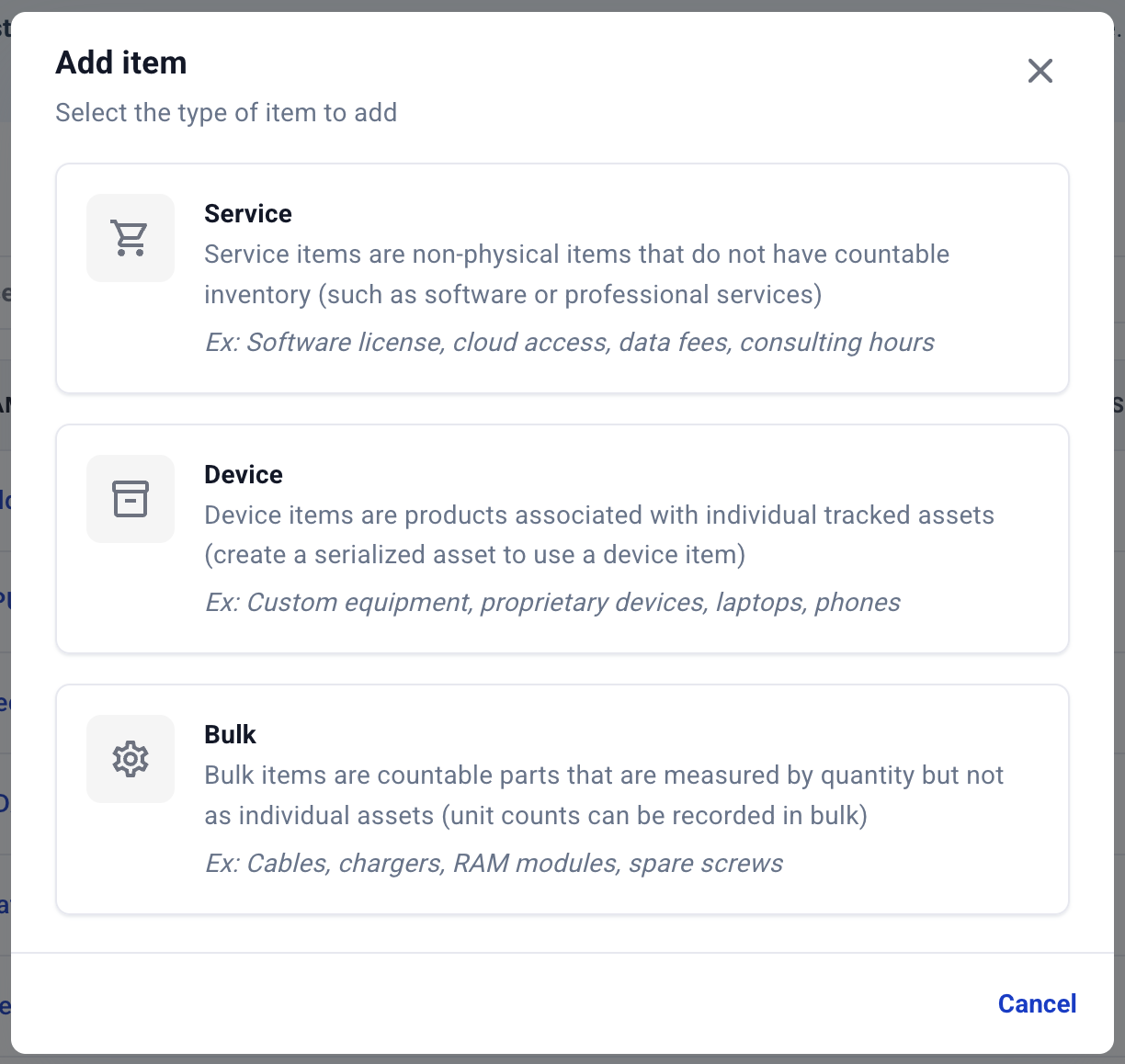
To create an individual item, click the "Add item" button and a window will appear. Enter the item's name, an optional SKU, an optional description, and select the item type:

  • Tracked device (such as equipment and devices) — serialized items that are tracked as assets

  • Service item (such as software and services) — non-physical items without associated assets

  • Bulk item (such as parts and materials) — components tracked by quantity in inventory

For tracked devices, you can also choose to record the bill of materials (BOM) if known.

"Add item" window

Name and SKU are the only field required to create a new item. The description field allows you to add detailed information about the item, which is useful for distinguishing between similar items or providing additional context for your team. Bulk items allow selecting a unit of measure to track and report on different quantities.

SKU suggestions

When creating a new item, Hardfin suggests available SKUs based on your existing items catalog patterns. As you type in the SKU field, suggestions appear that follow your organization's naming conventions. This helps maintain consistent SKU formats across your items catalog.

Bulk creation

To import items in bulk, you can use the CSV uploader to create or update multiple items at once. Click the menu icon in the items catalog and select "Import items" to access the uploader.

The CSV uploader workflow includes:

  1. Download template: Download a CSV template with the required columns and formatting

  2. Prepare your data: Fill in the template with your item information (name, SKU, description, type, and other fields)

  3. Upload and validate: Upload your CSV file and review any validation errors

  4. Review results: See which items were created or updated successfully

circle-info

The CSV uploader validates your data before importing. Any rows with errors will be highlighted so you can correct them before proceeding.

You can also import tracked devices by uploading new assets with new item information, and items will be created automatically. Additionally, you can configure an integration with a CRM or ERP or use your own data by setting up API access. If you'd like to set up an integration with your CRM or ERP, please contact supportenvelope.

Edit an item

To edit an item, click the pencil icon ✏️ at the top right in the item details page. A window will appear to edit the item's name, SKU, and description.

Changing item type

You can change an item's type from service item to tracked device if needed. You can only change an item's type from tracked device to service item if there are no assets currently associated with the item.

To change the item type:

  1. Navigate to the item details page

  2. Click the edit icon next to the item type

  3. Select the new type

  4. Save your changes

If assets are already associated with a tracked device, you will not be able to change the item type to service item.

Define bill of materials (BOM)

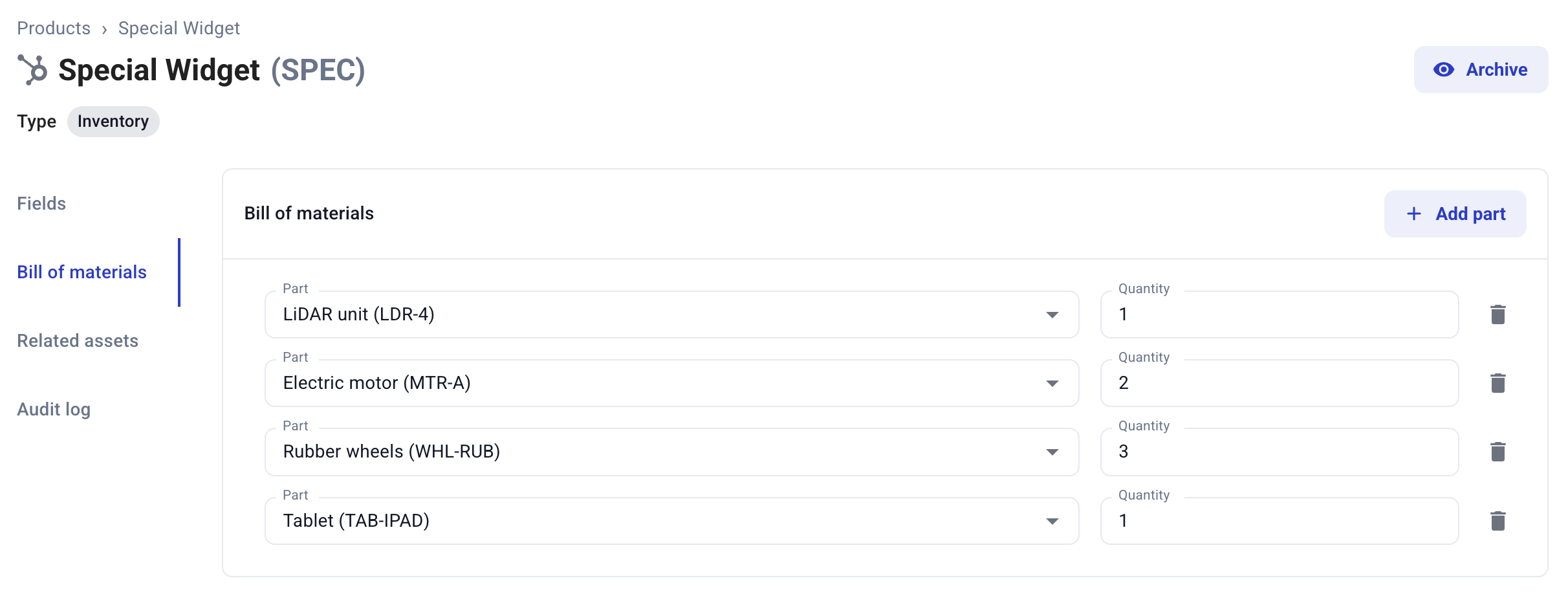
A tracked device may have a default bill of materials (BOM) defined by adding bulk items to the item. This BOM definition is used to pre-populate the expected unit counts for each bulk item when building an assembly.

Edit item bill of materials (BOM)

BOMs can be changed at any time and will only affect new assemblies that are built after the change.

Archive an item

circle-info

Archiving objects hides the object from the list view and dropdown menus. The object can still be viewed in the list by selecting the "Archived" option. Archived objects still appear in dropdown menus when searched by name.

To archive an item that is not yet archived, click the 👁️‍🗨️ Archive button at the top right of the item details page. A small badge will appear on the item indicating that it has been Archived.

The item will now be visible in the items catalog only when "Include archived items" is selected.

Archived item view in the items catalog
To unarchive an item that is already archived, open the item details page and select the 👁️‍🗨 Unarchive button.

Merge duplicate items

You can merge items to consolidate duplicates in your items catalog, helping maintain clean data and consistency.

Item merging is useful when you have:

  • Duplicate entries with slightly different names or descriptions

  • Items that represent the same physical item but were created separately

  • Legacy items that should be consolidated with current entries

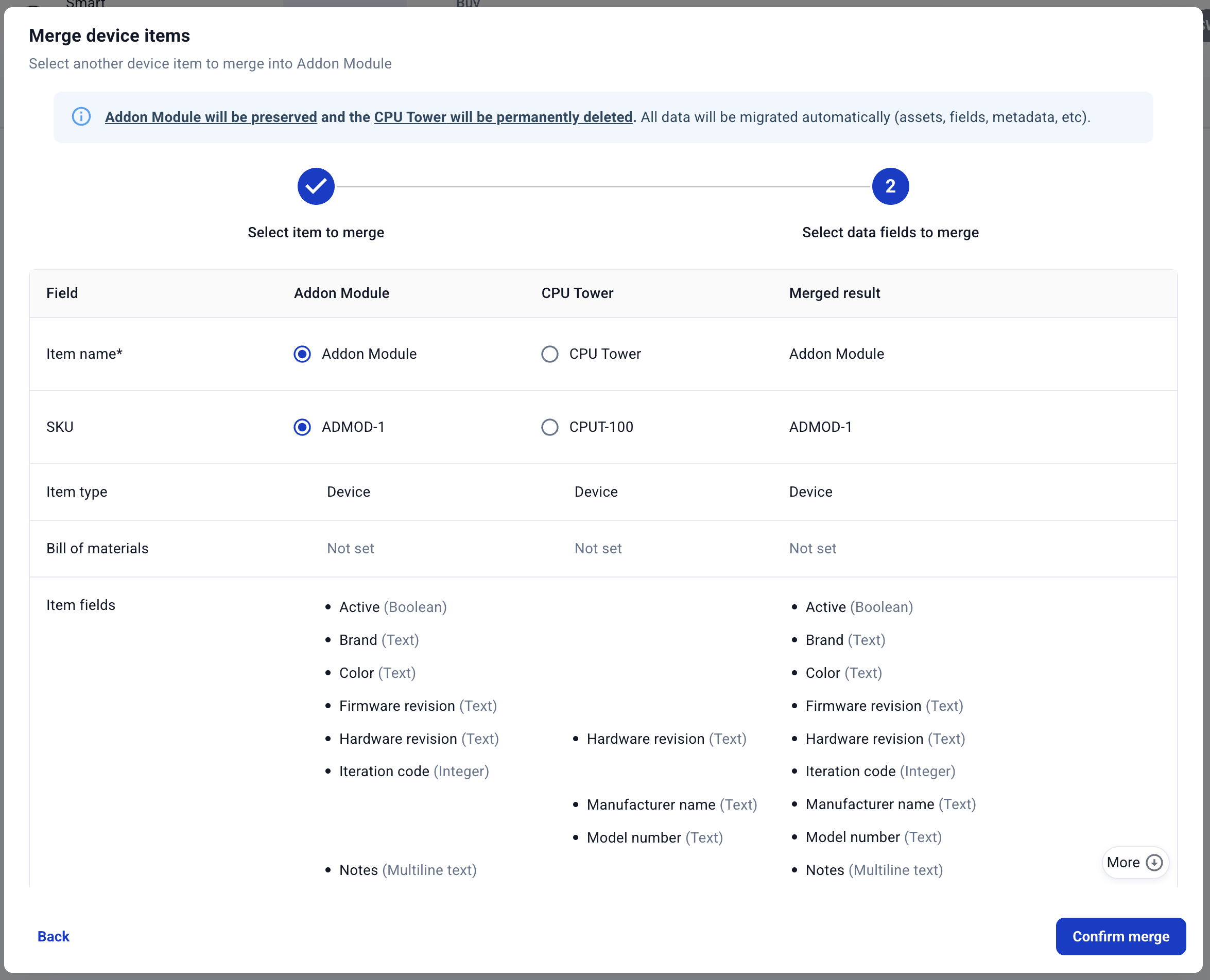
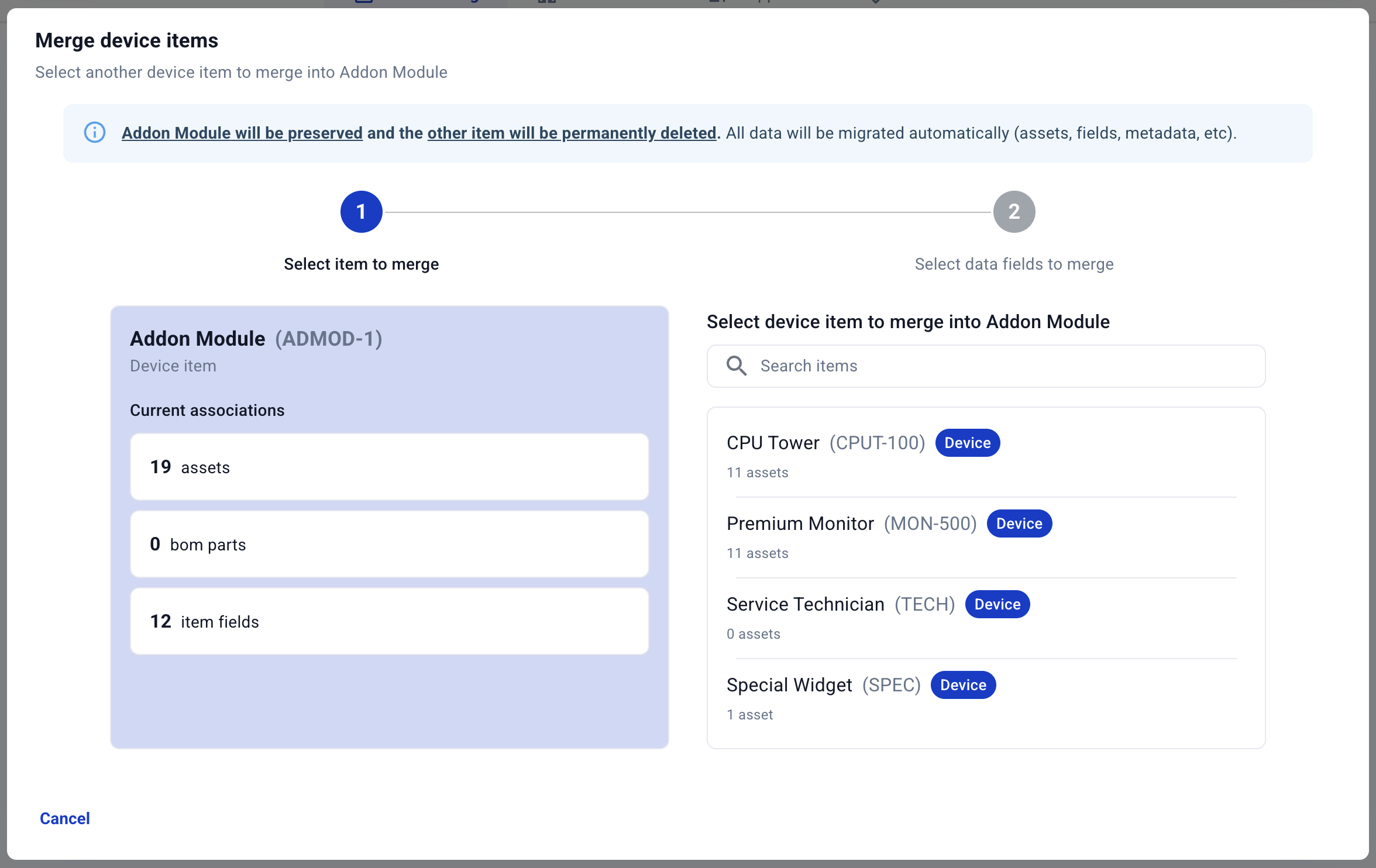
"Merge items" selector

How to merge items

To merge items:

  1. Navigate to the item you want to keep as the primary item

  2. Click the "Merge" 🔀 button in the top right near the Archive option

  3. Select item to merge: Choose the duplicate item you want to merge into the primary item

  4. Select data fields to merge: Review and select which data fields to keep from each item

    • Compare names, descriptions, and other attributes side by side

    • Choose the most accurate or complete information for each field

    • Preview how the merged item will appear

  5. Confirm the merge to complete the process

"Merge items" process

What happens during a merge

When you merge items:

  • All assets associated with the duplicate item are transferred to the primary item

  • The duplicate item is removed from your catalog

  • An audit log entry records the merge for tracking purposes

  • Any references to the duplicate item are updated to point to the primary item

circle-exclamation

Accounting defaults

Tracked devices include an Accounting tab that allows you to configure default accounting settings. These defaults are automatically inherited by new assets created from this item. This streamlines asset creation and ensures consistent accounting treatment across similar assets.

Configuring accounting defaults

To set up accounting defaults for a tracked device:

  1. Navigate to the item details page for a tracked device

  2. Click on the Accounting tab

  3. Configure the following default settings:

    • Cost basis - Default cost basis for new assets of this item type

    • Useful life (months) - Expected service life in months for depreciation calculations

    • Salvage value - Expected residual value at end of useful life

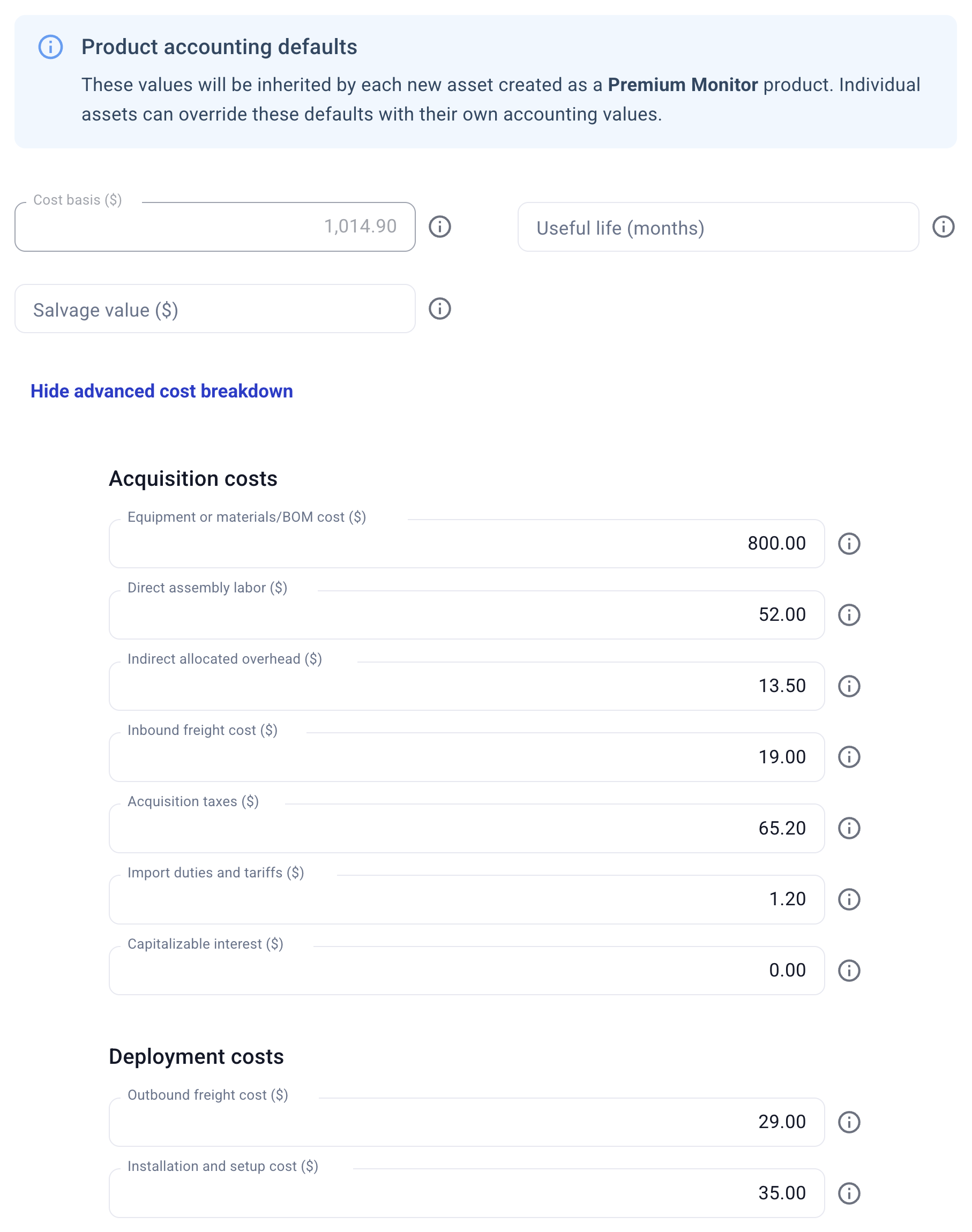
Advanced cost breakdown

An advanced cost breakdown allows you to set default values for detailed cost categories:

Acquisition costs

  • Equipment or bill of materials (BOM): Cost of purchased devices, raw materials, parts, or assemblies that make up the asset

  • Direct assembly labor: Labor directly attributable to assembling or preparing the asset before deployment

  • Indirect allocated overhead: Indirect overhead tied to asset acquisition or preparation, such as supervision, facilities, and utilities

  • Inbound freight: Transportation costs to bring materials or asset into your warehouse or staging site

  • Acquisition taxes: Non-recoverable taxes (e.g., sales tax, use tax, or import VAT) paid on acquisition of the asset, materials, or parts

  • Import duties: Customs duties, tariffs, and import fees on foreign-sourced assets, materials, or parts

  • Capitalizable interest: Capitalizable financing costs incurred during construction or long deployment projects

Deployment costs

  • Outbound freight: Transportation costs to deliver the asset from your warehouse or staging site to its operating location in preparation for deployment

  • Installation and setup: Setup, site preparation, configuration, commissioning, and testing costs to prepare the asset for deployment and make it operational

Example advanced accounting cost defaults

Acquisition vs deployment costs If your organization is using advanced cost basis, and the distinction between acquisition costs and deployment costs is relevant for your accounting reports.

  • Acquisition costs are always included in the cost basis for inventory. These are expected to be costs that were incurred in sourcing the asset. These costs move into fixed assets when an asset goes into service.

  • In contrast, deployment costs are not included in your inventory cost basis. These are expected to be costs that are incurred as the asset is deployed (i.e., as it is leaving inventory and going into service). They capitalize at the time the asset goes into service.

How accounting inheritance works

When you create new assets from an item with accounting defaults configured:

  • Automatic inheritance - New assets automatically receive the item's default accounting values

  • Customizable per asset - Individual assets can override inherited values as needed

  • Consistent treatment - Ensures similar assets use consistent accounting methods

  • Reduced data entry - Eliminates repetitive entry of common accounting information

Best practices for accounting defaults

  • Set realistic defaults - Use typical values based on historical asset data

  • Review regularly - Update defaults as costs and market conditions change (monthly, quarterly, or annually depending on business model)

  • Use detailed breakdowns - Configure advanced cost categories for better financial analysis

  • Document assumptions - Keep records of how default values were determined

Bulk items

A bulk item is a component tracked by quantity in inventory. Bulk items can be serialized (for more expensive or identifiable components such as a control board, motor, or tablet) or non-serialized (for less expensive or identifiable components such as frames, bolts, and screws).

Bulk items support:

  • Inventory tracking — Track quantities at each location, with transfers and adjustments

  • Bill of materials — Reference bulk items in a tracked device's BOM with requisite quantities

  • Assemblies — Use bulk items as components in assemblies

  • Asset components — Track bulk items as components of an asset after registration, or when maintenance is recorded

  • Units of measure — Specify how the item is counted or measured (e.g., each, kilogram, meter). See units of measure for the full list.

circle-info

Serial numbers are not required, even for bulk items that accept serial numbers. Bulk items are still tracked by unit quantity. This is different than tracked devices, where each asset is defined by a serial.

Item fields

Item fields define data that may be relevant for all the assets of that item type. These fields appear on each asset of this item type, so that the fields can be filled in as asset metadata. Learn more about managing item fields.

Last updated